
Context
At home, I have a NAS that I use as a production server for my Docker servers.
For testing, I like to use Docker directly on my personal computer through WSL, the thing that lets you have Linux even though you’re on Windows.
Problem
With my NAS, which already runs Linux, if I want to access a container from any device on my network, I just have to put the IP and the port in the URL.
192.168.x.x:my_port
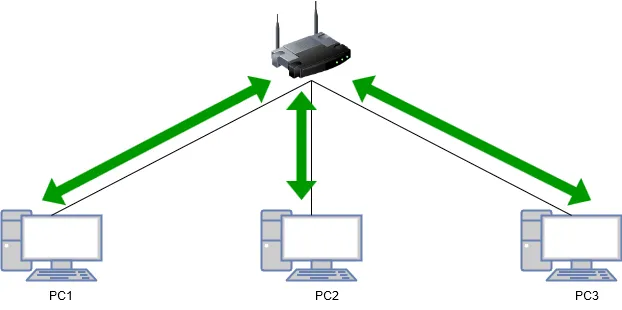
Except that with Windows, when using WSL2, WSL2 creates its own network.
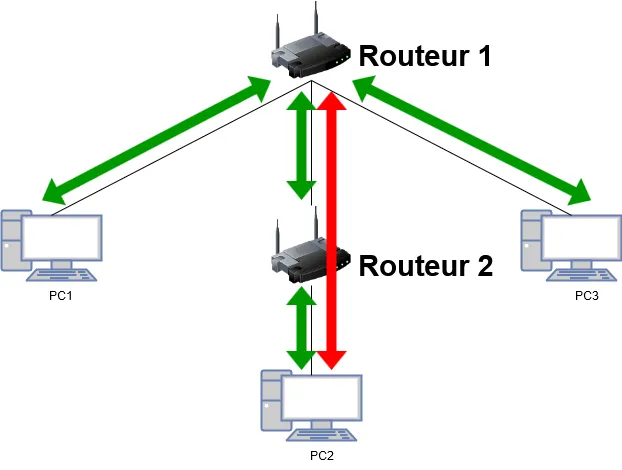
It’s a bit like at your place, where all your devices are connected to the same router and everything is fine, except that now you add a second router and plug your server into it.
Since your server is on another router, it’s on another network, and it’s perfectly normal that the other devices can’t communicate with it.
My goal isn’t to give a networking course, but I like to explain things so that everyone can understand and so that it’s clear.
Solution
In the previous image, you can see that “PC1” is connected to the same router (Router 1) as “PC3”, so they can communicate with each other directly, without any issue.
(Just a note: here I only put computers connected by cables, but with phones and the like it’s the same logic, except that instead of going through cables, WiFi is used)
On the other hand, “PC2”, although it is connected to the others in some way, is on a different router.
“Router 1” therefore can’t talk to it directly, it first has to communicate with “Router 2”, which will pass the information along.
It seemed important to me to illustrate this.
Now that we know that, we’re going to follow a few steps.
Step 0
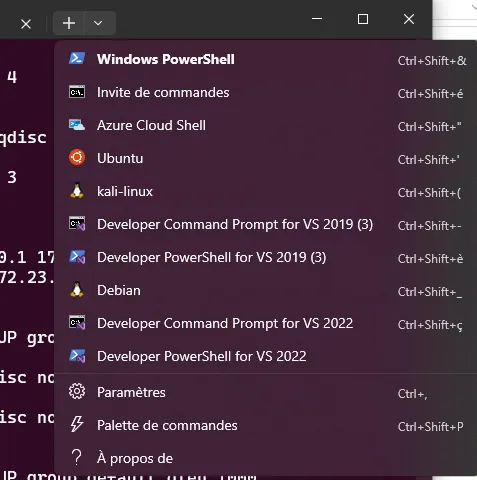
If you’re a bit lost for the rest of the tutorial, just install the Windows “Terminal” tool, it’s the simplest:
https://apps.microsoft.com/detail/9N0DX20HK701?hl=fr-fr&gl=FR&ocid=pdpshare
With this tool, you can easily switch from one terminal to another without any hassle.
Step 1
Run this command to get the IP we have on WSL2.
(That is, the IP that “Router 2” gave to “PC 2”, if that’s easier for you to understand)
ip addr | grep eth0You should get something like this:

Here, only the content of “eth0” matters to us, and we can see the IPs “172.30.76.170” and “172.30.79.255”.
This isn’t a networking course, but the second IP is not what we’re looking for since it ends with “255”, so my IP on WSL2 is indeed “172.30.76.170”.
If you want to test it, I assume that on your PC you were using “localhost:the_port” to access your container.
You just have to replace “localhost” with the IP given by WSL2, so for me: 172.30.76.170:the_port
Step 2
Now, you need to run this command in the “Windows PowerShell” terminal as administrator:
**/!\ You have to replace the “PORT” and “WSL_IP” values with your own
**
netsh interface portproxy add v4tov4 listenaddress=0.0.0.0 listenport="PORT" connectaddress="WSL_IP" connectport="PORT"Step 2 - Explanation
The goal of this command is that when you use your machine’s physical IP (192.168.x.x) and a given port, the request gets redirected to your WSL2’s IP, on the port you choose. This gives your other devices access to your computer’s containers.
listenport: This is the port you open on your computer to let the communication through.
To put it more visually, it’s so that “Router 1” can communicate with “Router 2”.
connectaddress: This is your WSL2 IP, the one we saw earlier.
connectport: This is the port of the Docker container you want to make accessible to other devices.
Step 3 - (optional)
To stop redirecting your computer’s port to WSL2’s port, run this command:
**/!\ Once again, make sure to replace “PORT” with the port you used in the “listenport” of the previous command.
**
netsh interface portproxy delete v4tov4 listenaddress=0.0.0.0 listenport="PORT"Or to remove all redirections without having to specify a port:
netsh interface portproxy resetStep 4
It’s annoying, but now you have to tell Windows that you allow other devices to connect (to add security, I suppose).
So there are two more commands to run in the terminal (Windows PowerShell).
To allow inbound connections, that is, allow external devices to connect to our machine:
netsh advfirewall firewall add rule name="Allow Port VOTRE_PORT" dir=in action=allow protocol=TCP localport=VOTRE_PORTAllow outbound connections, that is, allow your machine to connect to external devices. For example, if you don’t do this, the container won’t have access to the internet.
netsh advfirewall firewall add rule name="Allow Port VOTRE_PORT Out" dir=out action=allow protocol=TCP localport=VOTRE_PORT/!\ These commands add what are called firewall rules.
Each rule must have its own name, which is defined here by “name”.
You don’t have to call the rule “Allow Port 8000”, for example, you could call it “1234”, it would be the same thing, but it would be harder to understand which rule does what.
In any case, you have to be careful and give a different name each time.
/!\ Don’t forget to change the “localport” value at the end of the command.
Step 5 - (optional)
To remove the firewall’s inbound connection permissions:
netsh advfirewall firewall delete rule name="Allow Port VOTRE_PORT"To remove the firewall’s outbound connection permissions:
netsh advfirewall firewall delete rule name="Allow Port VOTRE_PORT Out"To see the list of rules on your computer, you can go to the Windows settings, but this time I’ll let you search for it. 😛
Otherwise, you can run this command… :
netsh advfirewall firewall show rule name=allExample
I’ll show you a concrete example:
netsh interface portproxy add v4tov4 listenaddress=0.0.0.0 listenport=10000 connectaddress=172.30.76.170 connectport=8400In this case, port 10000 on my computer is used to be redirected to port 8400 on my WSL2.
Port 8400 here is the port of my Jellyfin container, which I use for testing.
Now, if I want to stop the redirection:
netsh interface portproxy delete v4tov4 listenaddress=0.0.0.0 listenport=10000The end
As long as you don’t stop the port redirection, the devices on your network can access your computer’s containers through your computer’s physical IP, for example:
192.168.1.120:10000
/!\ For everything to work properly, make sure your computer and your devices are connected to the same network. If you try to connect from your phone while you’re on 4G, it won’t work.