Context
Right now, I want to learn how to crack a wifi network, so I’m using the “airmon-ng” tool preinstalled in Kali Linux. I’ll let you guess, but to brute-force wifi, the machine needs to have access to wifi. :p
In my case, I’m using a VM (Virtual Machine). According to several sources I’ve seen, to be able to use airmon-ng properly, Kali Linux needs physical access to the wifi card.
But since it runs from a VM, that’s not possible. From what I understand, it needs physical access in order to enable monitor mode, which lets it listen to all wireless network traffic.
For that, you just need to buy a wifi adapter that’s compatible with monitor mode. Since it goes through a USB port, it gives the VM direct access to the adapter, which lets it do what it needs to do.
I don’t want to advertise, but finding a compatible adapter is harder than it looks, so I’m showing you the model I chose. Personally I have no problems with it and it’s one of the cheapest I found.
Problem
It may seem silly, but… I had trouble connecting my VM to wifi using this adapter.
Not that it’s bad, it’s just that I’m not used to the way Kali Linux does things. :/
Solution
First, you need to plug in the wifi adapter only after the Kali Linux VM is running.
If you plugged it in beforehand, just unplug it and plug it back in.
You should get a message telling you that the adapter was detected and asking whether you want to use it on the host machine or on the VM.
Obviously, you need to choose the VM.
Personally, although I chose the VM option, it seems it wasn’t properly taken into account, so there’s a small manual step to do in VMware.
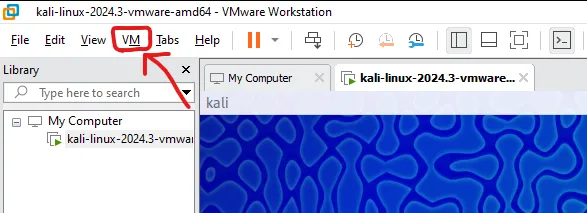
At the top left, click “VM”.
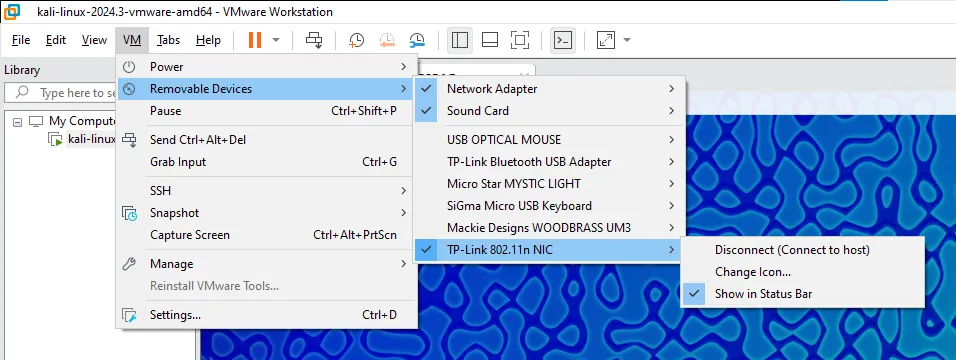
After that, select “Removable Devices”.
It shows the various devices of the computer, you need to right-click the wifi adapter, in my case it’s “TP-Link 802.11n NIC”, and then connect it to the VM.
Now, it’s better to restart the VM so the change takes effect.
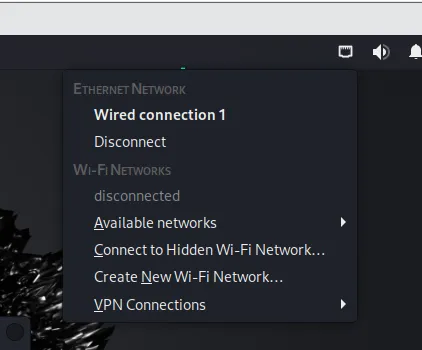
After that, you can see the wifi connection option on Kali, and all that’s left is to connect by going to “Available networks”!