
Upload your Symfony project to Hostinger
To upload your project to Hostinger, we will use FTP and SSH.
Everything is explained in this short tutorial.
Connect to Hostinger via FTP
FTP is a protocol that lets you transfer your files to a remote server.
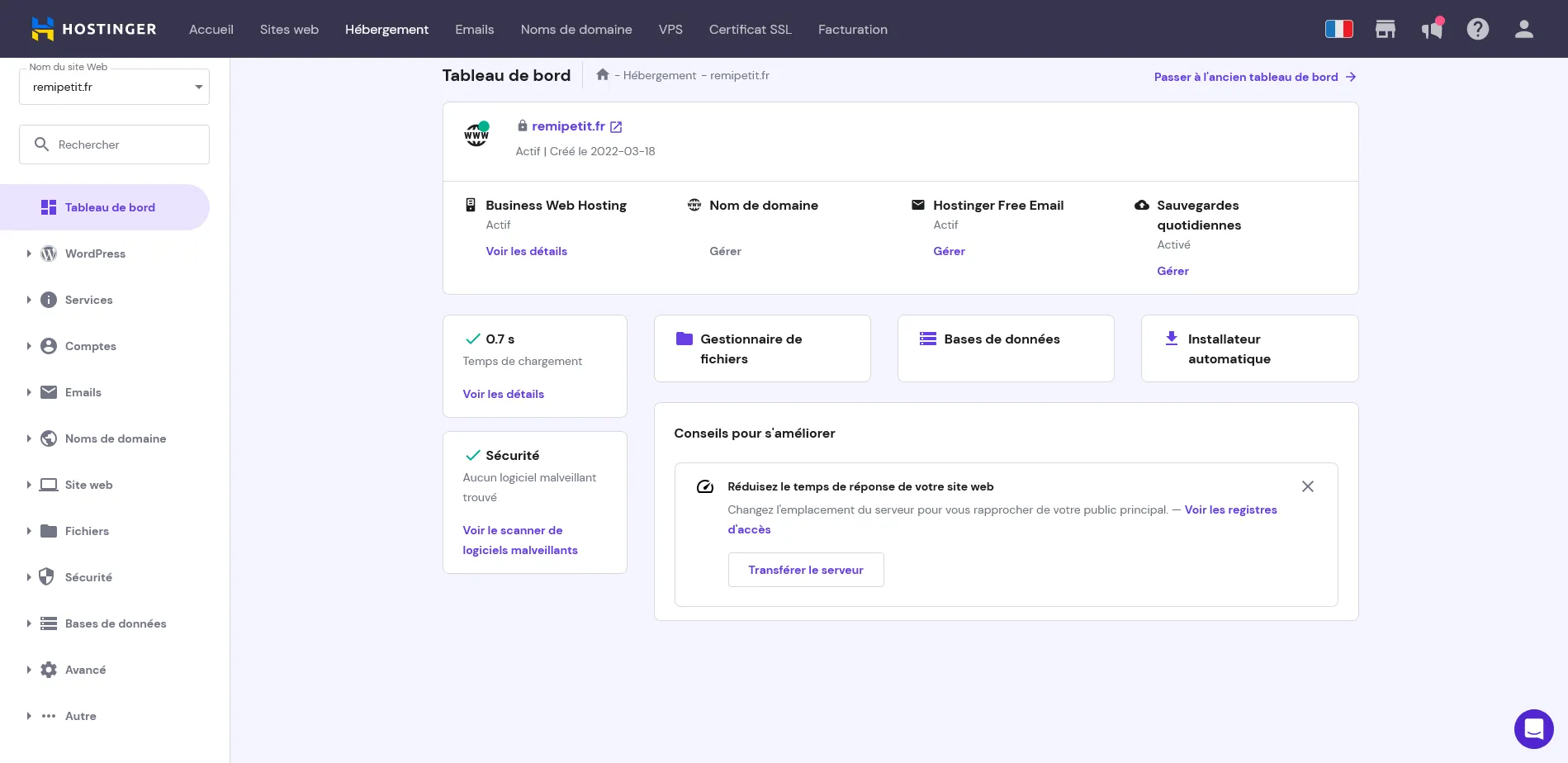
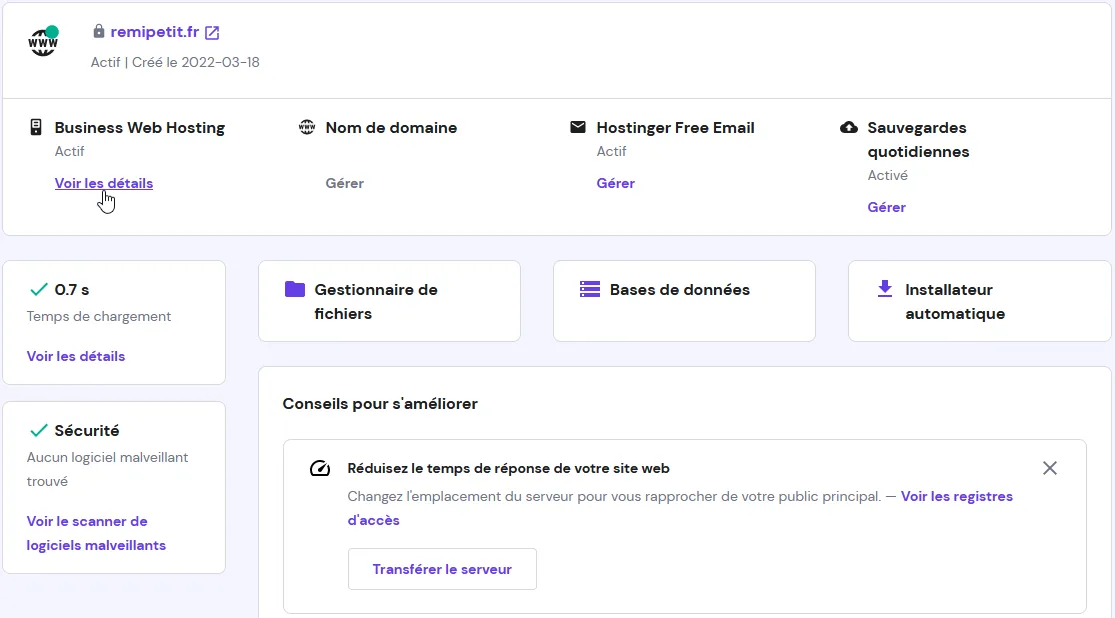
Go to “View details”.
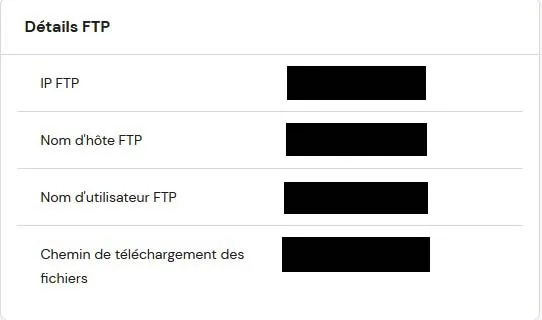
At the bottom right you can see “FTP Details”, which is what you need to connect.
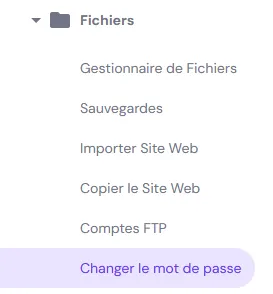
Forgot your FTP password?
FTP connection with FileZilla
FileZilla is free software that supports FTP, FTPS and SFTP connections. We’ll use FTP.
FileZilla link: https://filezilla-project.org
Once in FileZilla, you need to connect.

Once connected, go to the “domains” folder, then the folder matching your domain (for me it’s “remipetit.fr”), and finally “public_html”.
Put our Symfony project on Hostinger
Put your project in there without the “tests” and “vendor” folders.
If you used Git, don’t upload the “.git” folder or the “.gitignore” file either.
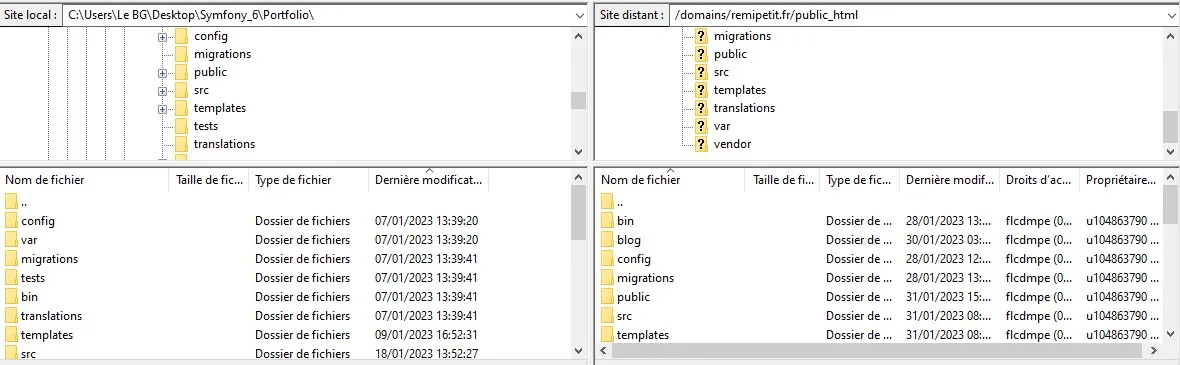
It may take a while.
Your site probably won’t work yet, for several reasons, so let’s move on.
Update PHP and Composer on Hostinger
Symfony needs PHP and Composer to run, and by default Hostinger doesn’t use the latest available versions. So you need to update them depending on the Symfony version you’re using.
Personally, I use Symfony 6.
So I need PHP version 8.0.2 or higher.
Update PHP
Go to your dashboard, then further down in the options, go to Advanced -> PHP Configuration.
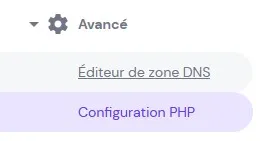
Choose the version you need, so for me it will be PHP 8.1.
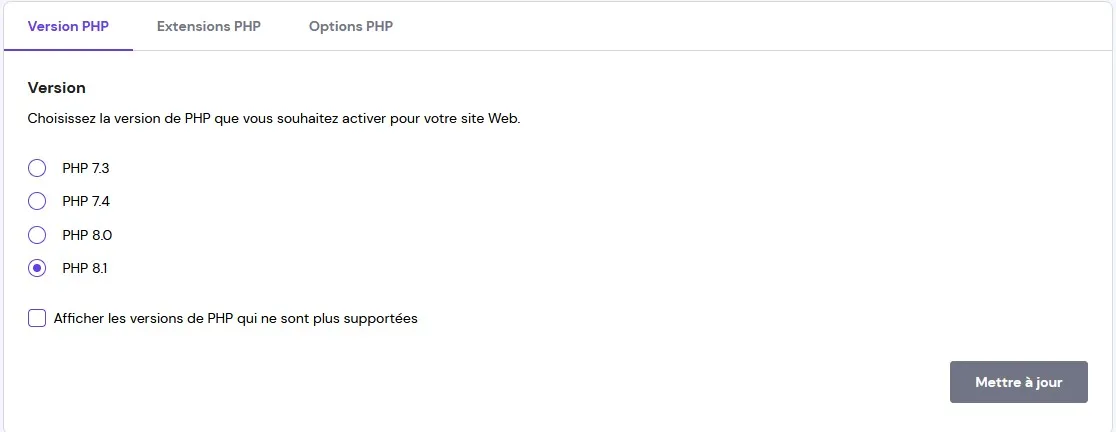
SSH connection
Now that PHP is up to date, let’s take care of Composer.
To do that, you need to connect to Hostinger via SSH. SSH is only available starting from the Premium Hosting plan, at €2.89/month at the time of writing this tutorial.
SSH is another protocol that lets you run command lines on a remote server. Here it will be used to update Composer.
To see your SSH access, go to “Advanced” then “SSH Access”.
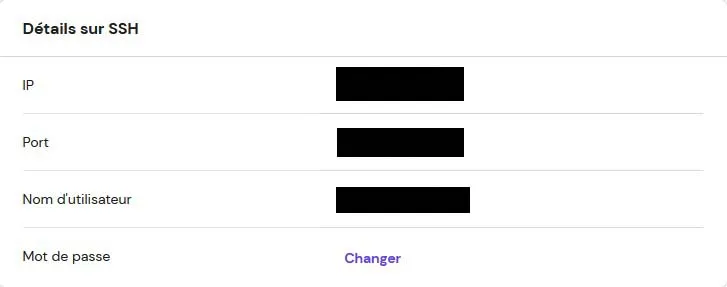
Open your terminal/command prompt and do the following:

It will ask for your password. If this is your first time using the command line, when you type your password nothing will show up, not even the usual *******, and that’s normal.
It’s just a security measure, your password is being taken into account.
Update Composer
Now that you’re connected via SSH, you need to run the commands.
Make sure to replace “votre_domaine” with your actual domain…
cd domains/votre_domaine/public_htmlIf the command below doesn’t work, I suggest visiting the official Composer website.
php -r "copy('https://getcomposer.org/installer', 'composer-setup.php');"
php -r "if (hash_file('sha384', 'composer-setup.php') === '55ce33d7678c5a611085589f1f3ddf8b3c52d662cd01d4ba75c0ee0459970c2200a51f492d557530c71c15d8dba01eae') { echo 'Installer verified'; } else { echo 'Installer corrupt'; unlink('composer-setup.php'); } echo PHP_EOL;"
php composer-setup.php
php -r "unlink('composer-setup.php');"
php composer.phar updateIf you have several Symfony projects with different versions, there is another command to specify the version you need. It’s optional, so for more details, see this site.
To specify PHP version 7.3 for example:
/opt/cloudlinux/alt-php73/root/usr/bin/php composer.pharComposer is now up to date, and the following command will install the missing dependencies.
php composer.phar require symfony/apache-packPut Symfony in production
Go to the File Manager in your Hostinger account dashboard.

And edit the .env file to put your project in “prod” mode.

Put your server in production by setting “APP_ENV” to “prod”.

Go back to your SSH session and do this:
php composer.phar install --no-dev --optimize-autoloaderCaching
By default, Symfony works with a caching system.
It’s useful for performance, but it means that from time to time, you need to clear the cache for your changes to show up on the site.
(A bit like a “Ctrl F5” sometimes when our CSS isn’t updated :p)
APP_ENV=prod APP_DEBUG=0 php bin/console cache:clearLink our Symfony app to an existing database on our Hostinger account
Personally, I already had a database and didn’t know how to use it instead of creating a new one, so I’ll show you how to do it.
To connect it with Symfony, you just need to get the information of the database we want, such as its name, the username and the password.
Go to the “.env” file from earlier and where it says “DATABASE_URL”, do it like this:
Be careful to put in your real information.
DATABASE_URL="mysql://Votre_Nom_Utilisateur:Votre_Mot_De_Passe@localhost:3306/Nom_De_Votre_Base_De_Donnée?serverVersion=8&charset=utf8mb4"403 error
If you get a 403 error, the problem most likely comes from your “.htaccess” file.
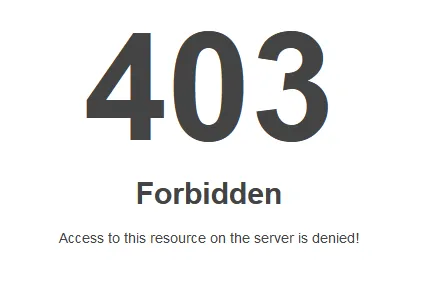
In case it helps, here is the code of my .htaccess. You just have to create an “.htaccess” file and copy/paste the code.
Click to see the .htaccess
<IfModule mod_rewrite.c >
    RewriteEngine on
    RewriteOptions inherit

    # SSL and let's encrypt
    RewriteCond %{REQUEST_URI} !^/\.well-known/acme-challenge/.+$
    RewriteCond %{REQUEST_URI} !^/\.well-known/pki-validation/[A-F0-9]{32}\.txt(?:\ Comodo\ DCV)?$
    RewriteRule ^.well-known/acme-challenge - [L]

    # redirect to no-www
    RewriteBase /
    RewriteCond %{HTTP_HOST} ^www\.(.*)$ [NC]
    RewriteRule ^(.*)$ http://%1/$1 [R=301,L]

    # https redirect
    RewriteCond %{HTTPS} !=on
    RewriteRule .* https://%{HTTP_HOST}%{REQUEST_URI} [R=301,L]

    # redirect all requests to public directory
    RewriteCond %{REQUEST_URI} !public/
    RewriteRule (.*) /public/$1 [L]
</IfModule>
# DO NOT REMOVE THIS LINE AND THE LINES BELOW ERRORPAGEID:Q8jRKBSRHH
ErrorDocument 404 /404.html
# DO NOT REMOVE THIS LINE AND THE LINES ABOVE Q8jRKBSRHH:ERRORPAGEID
This file must be placed at the root of your project, so in your “public_html” folder.
In fact, to display your website, Apache looks for an “index.html” or “index.php” file.
With Symfony, the “index.php” file isn’t at the project root, it’s in the “public” folder, so Apache doesn’t find it and returns a 403 error.
The “.htaccess” lets you give instructions to Apache. Here, it tells it that the file is in the “public” folder and not at the project root.
We will now add a second “.htaccess”, this time in our “public” folder, to tell it to serve our “index.php” file. Here is the code of my second .htaccess.
Click to see the .htaccess
# Use the front controller as index file. It serves as a fallback solution when
# every other rewrite/redirect fails (e.g. in an aliased environment without
# mod_rewrite). Additionally, this reduces the matching process for the
# start page (path "/") because otherwise Apache will apply the rewriting rules
# to each configured DirectoryIndex file (e.g. index.php, index.html, index.pl).
DirectoryIndex index.php

# By default, Apache does not evaluate symbolic links if you did not enable this
# feature in your server configuration. Uncomment the following line if you
# install assets as symlinks or if you experience problems related to symlinks
# when compiling LESS/Sass/CoffeScript assets.
# Options +FollowSymlinks

# Disabling MultiViews prevents unwanted negotiation, e.g. "/index" should not resolve
# to the front controller "/index.php" but be rewritten to "/index.php/index".
<IfModule mod_negotiation.c>
    Options -MultiViews
</IfModule>

<IfModule mod_rewrite.c>
    # This Option needs to be enabled for RewriteRule, otherwise it will show an error like
    # 'Options FollowSymLinks or SymLinksIfOwnerMatch is off which implies that RewriteRule directive is forbidden'
    Options +FollowSymlinks

    RewriteEngine On

    # Determine the RewriteBase automatically and set it as environment variable.
    # If you are using Apache aliases to do mass virtual hosting or installed the
    # project in a subdirectory, the base path will be prepended to allow proper
    # resolution of the index.php file and to redirect to the correct URI. It will
    # work in environments without path prefix as well, providing a safe, one-size
    # fits all solution. But as you do not need it in this case, you can comment
    # the following 2 lines to eliminate the overhead.
    RewriteCond %{REQUEST_URI}::$0 ^(/.+)/(.*)::\2$
    RewriteRule .* - [E=BASE:%1]

    # Sets the HTTP_AUTHORIZATION header removed by Apache
    RewriteCond %{HTTP:Authorization} .+
    RewriteRule ^ - [E=HTTP_AUTHORIZATION:%0]

    # Redirect to URI without front controller to prevent duplicate content
    # (with and without `/index.php`). Only do this redirect on the initial
    # rewrite by Apache and not on subsequent cycles. Otherwise we would get an
    # endless redirect loop (request -> rewrite to front controller ->
    # redirect -> request -> ...).
    # So in case you get a "too many redirects" error or you always get redirected
    # to the start page because your Apache does not expose the REDIRECT_STATUS
    # environment variable, you have 2 choices:
    # - disable this feature by commenting the following 2 lines or
    # - use Apache >= 2.3.9 and replace all L flags by END flags and remove the
    #   following RewriteCond (best solution)
    RewriteCond %{ENV:REDIRECT_STATUS} =""
    RewriteRule ^index\.php(?:/(.*)|$) %{ENV:BASE}/$1 [R=301,L]

    # If the requested filename exists, simply serve it.
    # We only want to let Apache serve files and not directories.
    # Rewrite all other queries to the front controller.
    RewriteCond %{REQUEST_FILENAME} !-f
    RewriteRule ^ %{ENV:BASE}/index.php [L]
</IfModule>

<IfModule !mod_rewrite.c>
    <IfModule mod_alias.c>
        # When mod_rewrite is not available, we instruct a temporary redirect of
        # the start page to the front controller explicitly so that the website
        # and the generated links can still be used.
        RedirectMatch 307 ^/$ /index.php/
        # RedirectTemp cannot be used instead
    </IfModule>
</IfModule>
Now that all of this is done, you may need to refresh the cache with the command given a bit further up.