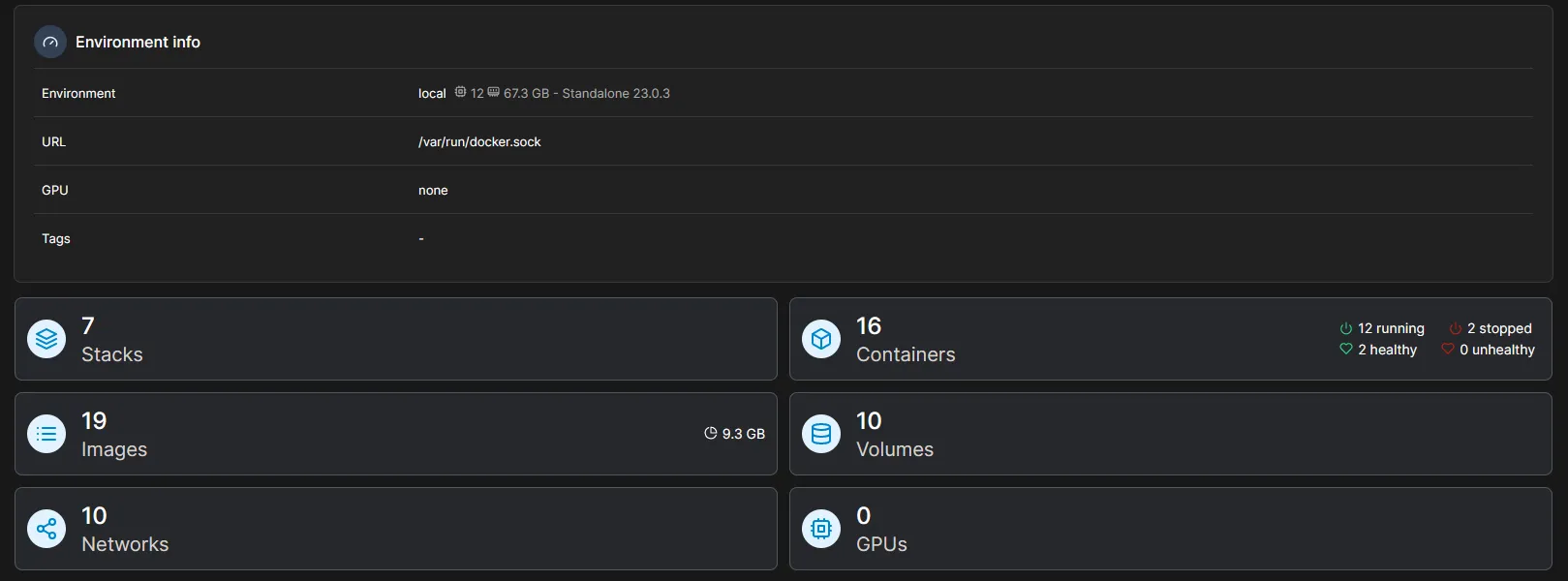
OMV-Extras is an extension for OMV (OpenMediaVault) that adds a whole bunch of plugins and really useful features that almost make it a must-have.
You get Docker, Portainer, ZFS and Fail2Ban, among others.
With Docker alone, the possibilities are practically endless.
SSH connection to your NAS
Don’t know what an SSH connection is?
Roughly speaking, it’s what lets you access the CMD (the command prompt) of a remote server.
You don’t have to do this to install it, you can type the command directly on your NAS but… a simple copy/paste is still easier, hence SSH.
And it’s good to know how to do it sooner or later, the remote server (the host) isn’t always at home…
- open your command prompt
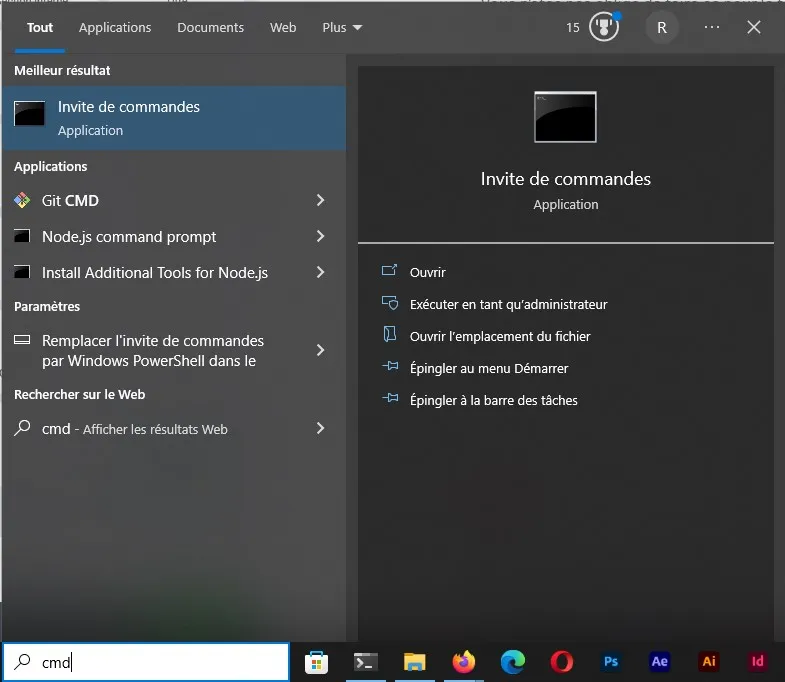
- SSH connection

Your username is most likely root.
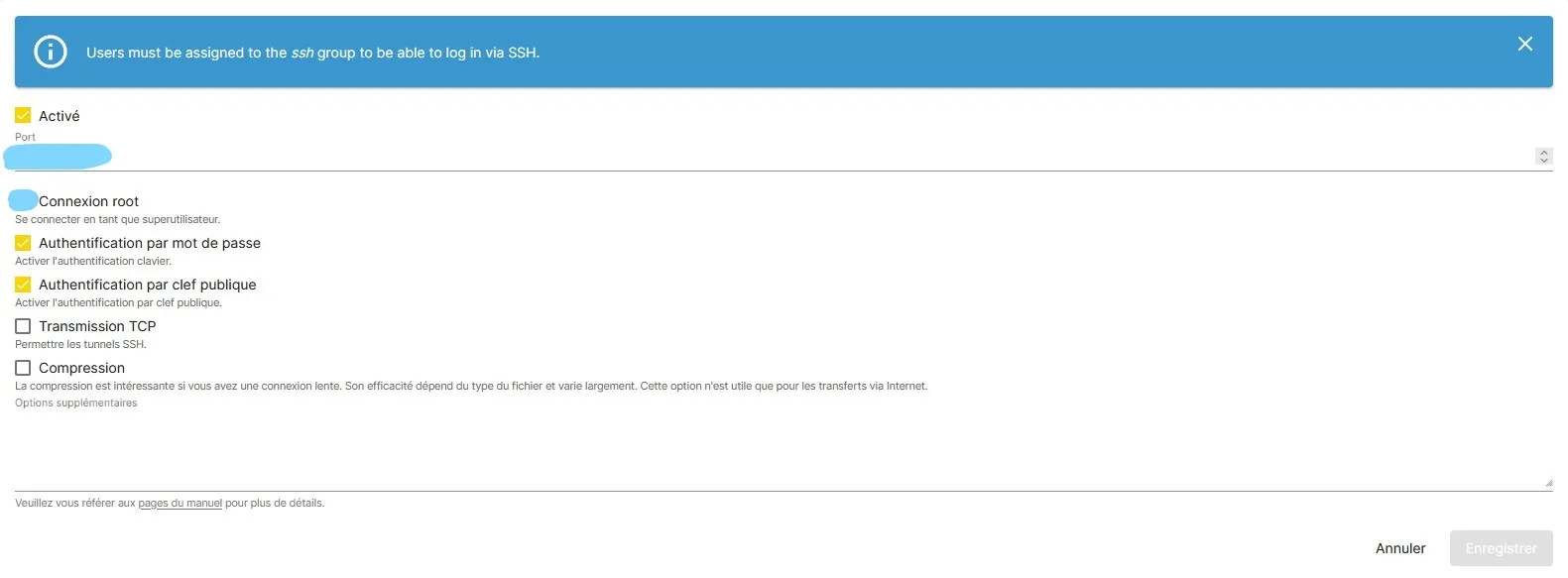
Of course, if it doesn’t work, it’s because you haven’t enabled SSH, you just have to do it…
Go to OpenMediaVault, in “Services” then “SSH”.
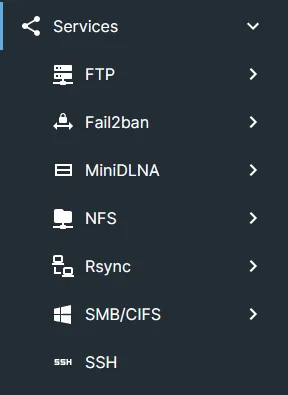
I’ve already installed some plugins, so it’s normal if you don’t have as many options as I do.
Installing OMV-Extras
Now that you’re connected over SSH, run the following command:
wget -O - https://github.com/OpenMediaVault-Plugin-Developers/packages/raw/master/install | bash You can now see it in OpenMediaVault under “System”, “omv-extras” should have appeared.
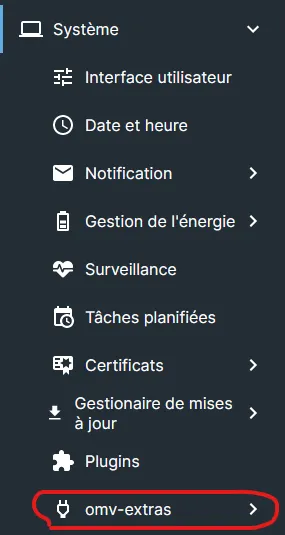
Your list of plugins (above omv-extras) should have grown quite a bit. I recommend installing the “minidlna” plugin if you want, it lets your TV access the NAS 😉 More information here: https://blog.remipetit.fr/comment-relier-des-appareils-informatiques-avec-un-nas
Installing Docker and Portainer
If you go to “omv-extras”, this should appear:

Installing Docker is very simple. Just click on Docker and hit “Install”.
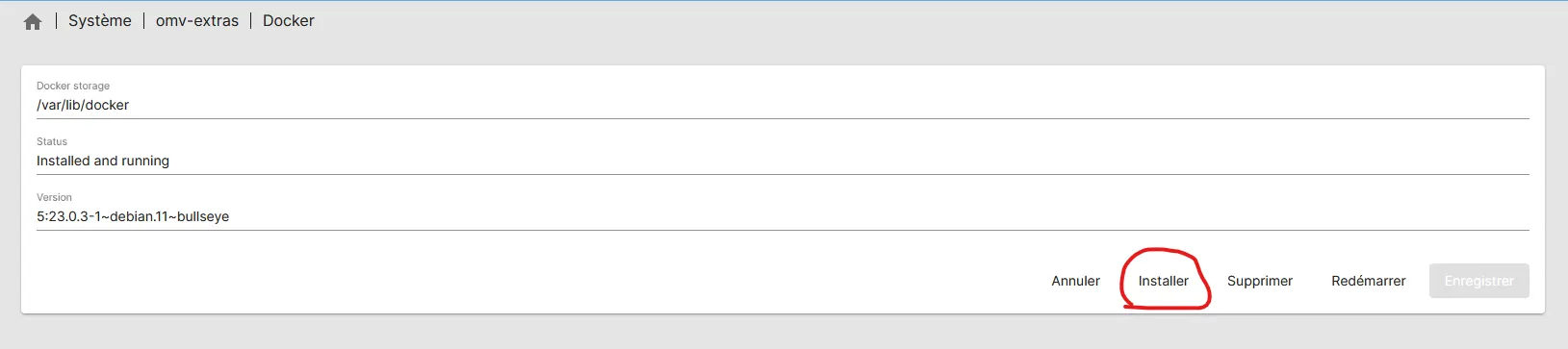
And the same goes for Portainer. In case you don’t know it, it’s a web interface for managing Docker, which is very handy. The default port to access it is 9000, but you can change it if you want.