
Context
It may sound silly, but in World Of Tanks, there’s no way to limit the FPS (the game’s frames per second).
Not that it bothers me to play at over 400 FPS and use my computer like a toaster, LOL, but I preferred to find a solution to this problem.
Problem
If it were as simple as selecting an option in the game’s graphics settings, I wouldn’t have written a tutorial.
It’s more technical, you have to edit one of the game’s files.
By the way, this file gets reset during certain updates, which is why a tutorial doesn’t hurt.
Solution
/!\ I learned some time ago that this problem only occurs when you use the official World Of Tanks launcher. If you go through Steam, you’ll have access to the FPS limit option in game.
It’s silly, but that’s how it is… It’s a more lasting option than what follows.
If you’ve already downloaded the game with the official launcher and don’t want to reinstall it, just follow the steps below.
Keep in mind that during certain game updates, you may have to start over.
First, you need to find where your game files are.
If you’re not comfortable with that at all, here’s a little tip.
Do you see your game’s launch icon?

Right-click on it and go to “Properties” .
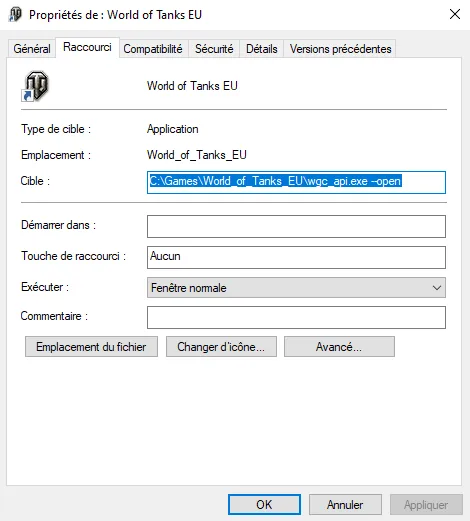
The target is the file that gets executed when you launch the game by clicking the launch icon.
That’s where the game files are, so in my case it’s in “C:\Games\World_of_Tanks_EU”.
From there, the file we’re interested in is in the “res” folder, it’s the “engine_config” file.
By default it can’t be edited, but someone developed a project to make it possible and put it on GitHub, a platform where developers can store and share code.
So you have to download their project, at this link:
https://github.com/mikeoverbay/XML_Editor
Once on GitHub, you have to download the project by clicking “Code” then “Download ZIP”.
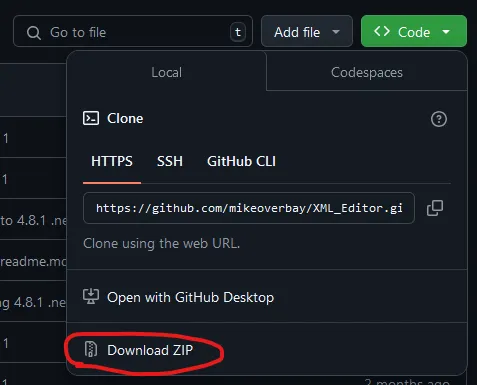
Once that’s done, you have to unzip the project, that is, do this:
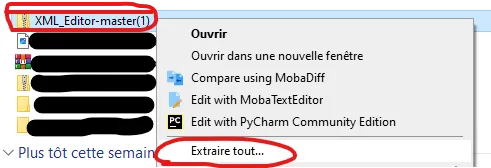
Now, go into the project folder and install it.
There are different versions, I recommend taking the most recent one, at the time of writing this tutorial it’s version 11.
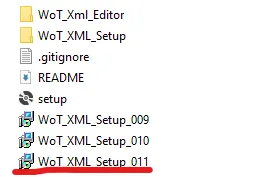
You just have to click next each time, so I won’t detail the steps.
/!\ You’ll get a security message, you have to ignore it.
Why? For a project to be considered harmless, it needs what’s called a certificate to prove it’s safe.
To get this certificate, you have to pay external companies, like DigiCert, Sectigo, GlobalSign, Thawte for example.
In our case, it’s a project developed by a single person, and the code is completely visible, so it’s perfectly normal that there’s no certificate and that Windows doesn’t know it and, when in doubt, shows this popup.
**/!\ Of course, not all “Open Source” projects (projects where you have access to the project’s source code) are necessarily safe. It’s possible to slip a few malicious lines into a project, even if the code is visible, and if nobody looks you still get fooled. :p
I’m not trying to scare you, just for your information.
**
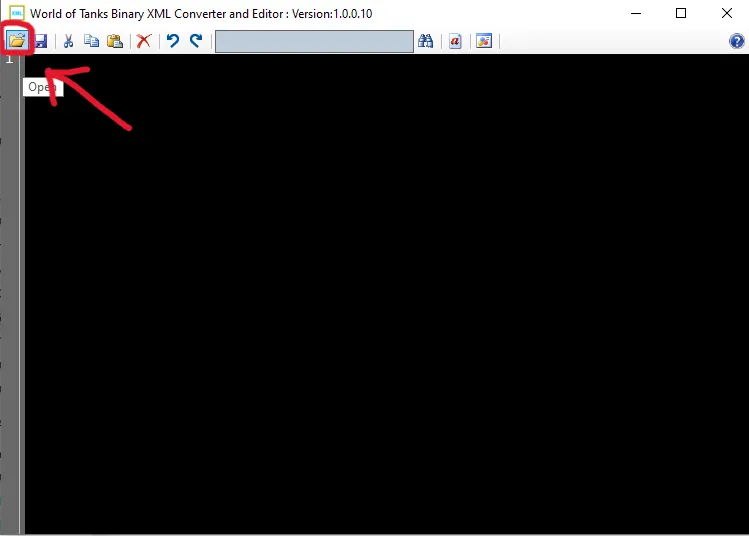
Once the project is open, you have to look for the file we were talking about earlier, in the game files.
/!\ A little subtlety that might annoy you if you don’t know about it.
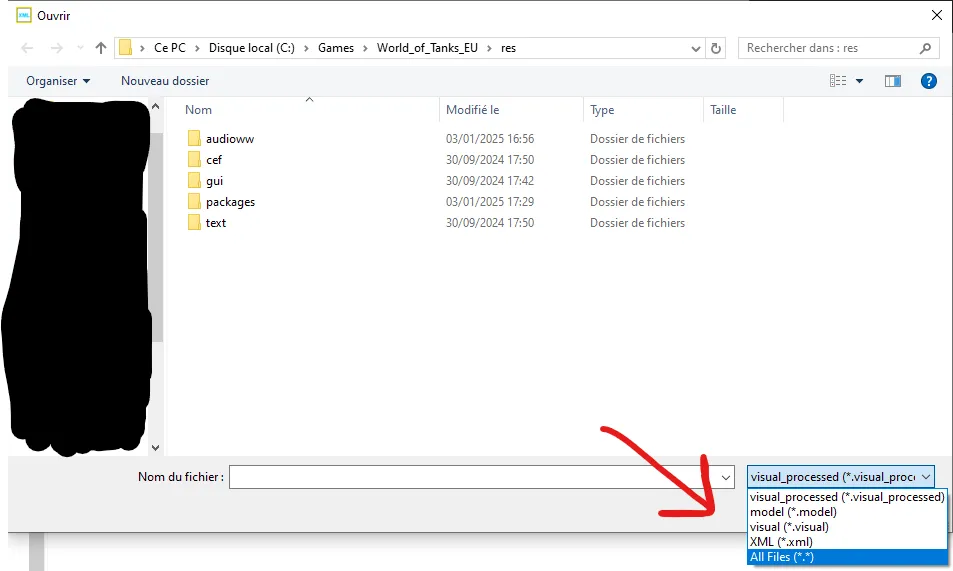
If you don’t set the thing at the bottom to “All Files”, you won’t see the famous “engine_config” file we want to edit. 😛
Now, we can configure the FPS limit, FINALLY!
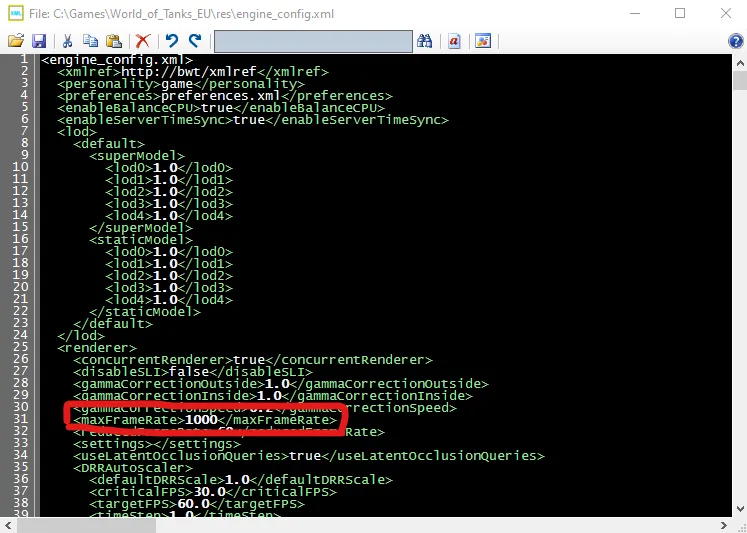
It may change over time, but for me it’s on line 31, you have to change the value to match your needs, personally I set it to 80.
That’s all folks, see you next time.