Context
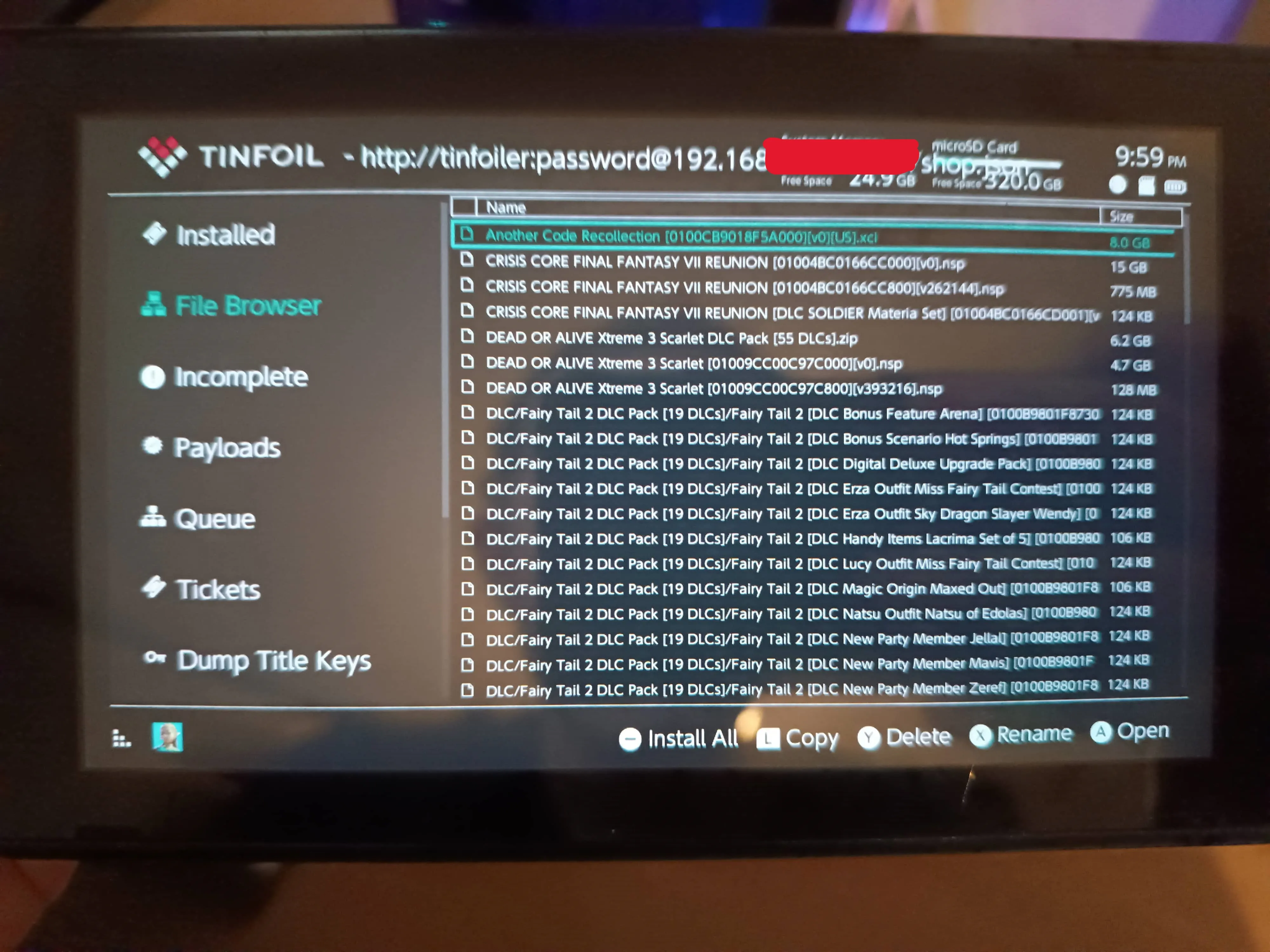
When you have a hacked Switch, you can download games for free and play them however you like.
To do that, you usually use “Tinfoil”.
There are several ways to get games: either by using the server of someone who makes them available, or by installing them yourself using certain download sites.
In the first case, the server in question doesn’t necessarily have the games you want, and it isn’t reliable since the server may shut down, in which case you lose access.
In the second case, once you have the games, there are several methods to put them on the Switch.
The first method is to plug the Switch into the computer that has the game. It works, but it can be pretty annoying to go back and forth to the PC every time, and then… if you’re not at home, you can’t. Not to mention that after putting the game on the Switch, you have to go through Awoo Installer, for example, for it to be usable.
The second method is over Wi-Fi. For example, ns-usbloader lets you create a server on your computer to make your games available on the network, and then you just connect to it to access them.
Here is the link where you can easily download it to your computer:
https://github.com/developersu/ns-usbloader/releases
Problem
The “problem” with the Wi-Fi method I just mentioned is that you have to leave the server running for it to work, which is normal.
The most convenient would be to host this server on a machine that stays on 24/7, a NAS for example, and not necessarily on the computer you use every day.
The advantage of using a NAS instead of your PC is that, on top of the games always being available, it’s relatively simple to configure it to make it accessible over the internet safely. Not to give the games to the rest of the world (which is illegal, although this article itself doesn’t exactly breathe legality either…), but simply to be able to access your games even when you’re away from home.
When I deploy a tool on my NAS, I like to use Docker. It simplifies deployment and it’s more reliable than simply installing the tool directly on the machine.
The problem is that ns-usbloader wasn’t developed to work like that. There is an alternative, NUT or its equivalent, a fork of NUT, which has a web interface, its own ready-to-use Docker image and fairly complete documentation. NUT is also recommended by Tinfoil.
But… the interface is rather outdated, maybe I used it wrong but it didn’t work very well for me and… I found THE project.
Solution
I stumbled upon the tinfoil-hat project, a highly optimized project. According to the README of the GitHub repo, it only uses 57 MB of RAM compared to NUT, which uses 1.5 GB…
On top of that, it offers better features. With the NUT fork, for example, you have to set up a watcher on the folder where the games are stored so the game list is updated every 30 seconds, for instance.
Tinfoil-hat, on the other hand, refreshes the list as soon as a game is added to the folder.
Also, Tinfoil-hat can handle multiple users logging in and can also automatically back up your game progress.
It was developed in Node.js, a tool for building web servers, so it’s easy to deploy on Docker and… it also has its own Docker image, not to mention a README that is fairly detailed too… what more could you ask for!
In this article, I won’t talk about save management.
There is a docker-compose.yml example in the project’s README, and I recommend you take a look.
Here is a basic docker-compose.yml example that does the job very well:
version: "3"
services:
  tinfoil-hat:
    container_name: tinfoil-hat
    build: .
    image: vinicioslc/tinfoil-hat:latest
    environment:
      - DEBUG=*
      - AUTH_USERS=tinfoiler:password,othertinfoiler:otherpassword
      - UNAUTHORIZED_MSG='No tricks and treats for you!!'
      - WELCOME_MSG='The Server Just Works!!'
      - NX_PORTS=5000 # ftp port used to sync saves

    ports:
      # Change to any port of your machine (99 in that case) (dont change the :80 !!!)
      - 99:80
      # you can now access on your browser http://localhost:99/shop.json and see your games
    volumes:
- ./switch/games/:/games/AUTH_USERS: As you can see in “environment”, this is where you can put the different user accounts, user:password separated by commas for each account.
If you keep the docker-compose.yml I gave you, to log in the username will be “tinfoiler” and the password will be “password”.
ports: This is where you can specify the HTTP port you want to use for your server.
You can very well replace “99:80” with “9200:80” for example, so your server will be accessible at “192.168.x.x:9200” and not “192.168.x.x:99”.
The list of your games will be available at “192.168.x.x:your_port/shop.json”.
That’s therefore the path you’ll need to enter on your Switch to access your server.
Obviously, you need to replace “192.168.x.x” with your machine’s IP.
volumes: This is what lets your Docker container access the games stored on your machine.
If you want to store your games in a specific place on your machine, just change the “./switch/games/” path to the path you want on your device.
In this article, I won’t cover how to make the game server accessible over the internet, or how to turn the HTTP connection into HTTPS.
If that’s something that interests you, you should look into “reverse proxies”, with tools like SWAG, Nginx Proxy Manager or Traefik for example (there are others).
Now that the server is running and you have your games, here is how to access your server on the Switch via Tinfoil!
Step 1
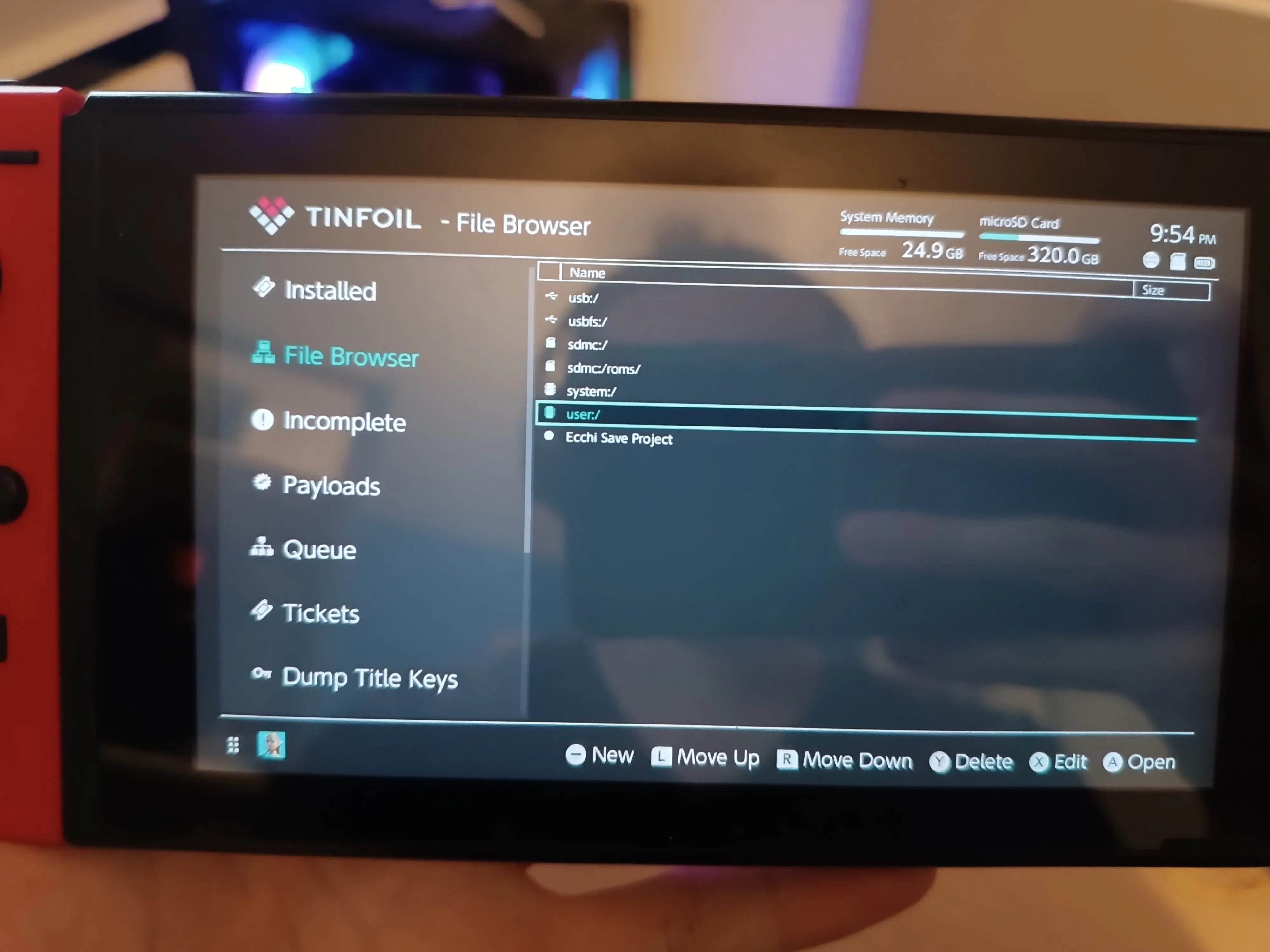
Go to “File Browser” in Tinfoil and press the - button.
Step 2
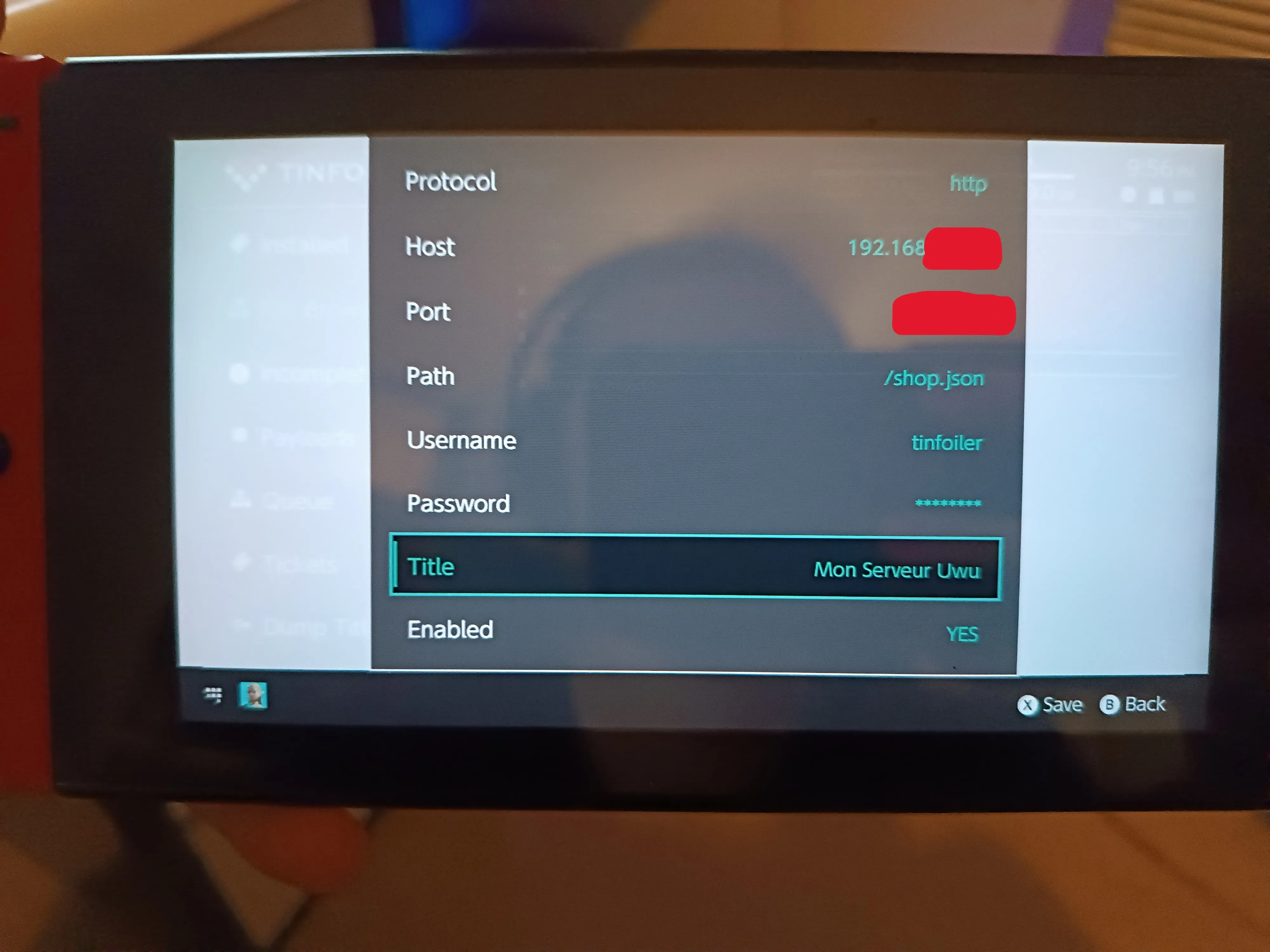
Enter the different pieces of information you configured earlier in the “docker-compose.yml”.
Then press X to save.
I hid my Host and my Port, although it isn’t super important in this case in terms of security, but I prefer to anyway.
Step 3
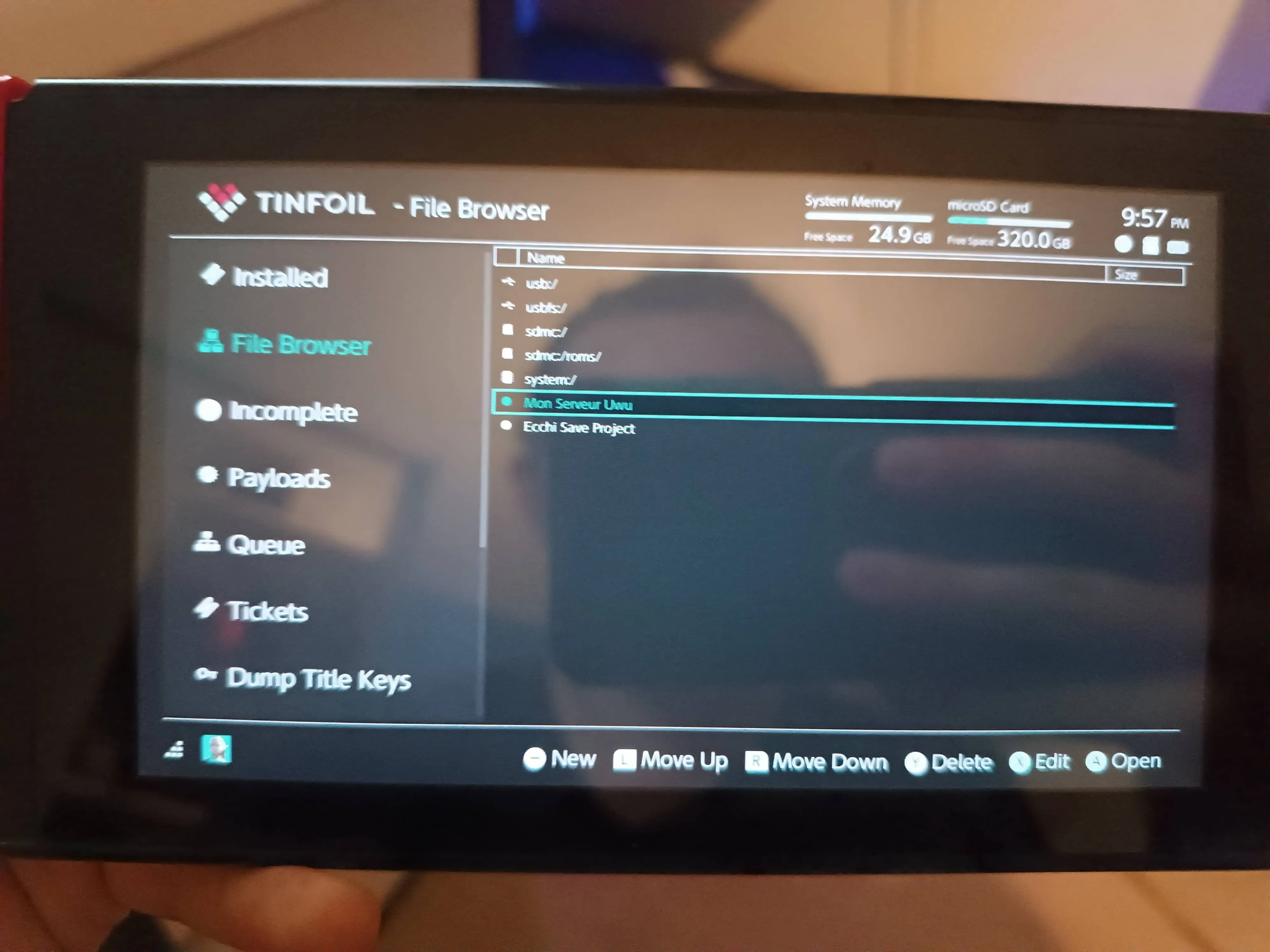
All that’s left is to enter your server by pressing A!
Have fun playing!