
Context
I helped a friend build his computer.
He bought the parts one by one so as not to spend too much at once.
The last part he bought was his graphics card. So we used an old graphics card of mine that I only use for testing (it was a GT 150 but that doesn’t matter much). Up to there, all good, Windows starts and everything’s there.
So he received his new graphics card, an RX 6650 XT (it’s a bit above the RTX 3060 for those interested: benchmark link)
Problems
Once the new graphics card was installed, absolutely nothing was displayed, the screen said it was receiving no signal.
The problem isn’t the graphics card, I tested it on another PC and it works perfectly (and we have the same motherboard so no compatibility issue).
We even updated the BIOS so it’s really not a compatibility problem.
When putting both graphics cards in (the old one and the new one) to see what happens, in the Windows Device Manager we saw a code 12, something like “not enough resources”.
So the card is visible; maybe the problem comes from the port used? No, we tried everything. The power supply?
It’s 750 W so no.
So what?
Solution
The problem comes from the BIOS.
When the computer uses old hardware, it makes changes accordingly.
In our case, it had switched to CSM mode (it needed that to be able to boot with the old graphics card), whereas the new graphics card requires UEFI mode.
/!\ Note: for the changes to be taken into account, I had to do a clear CMOS.
The steps I followed
-
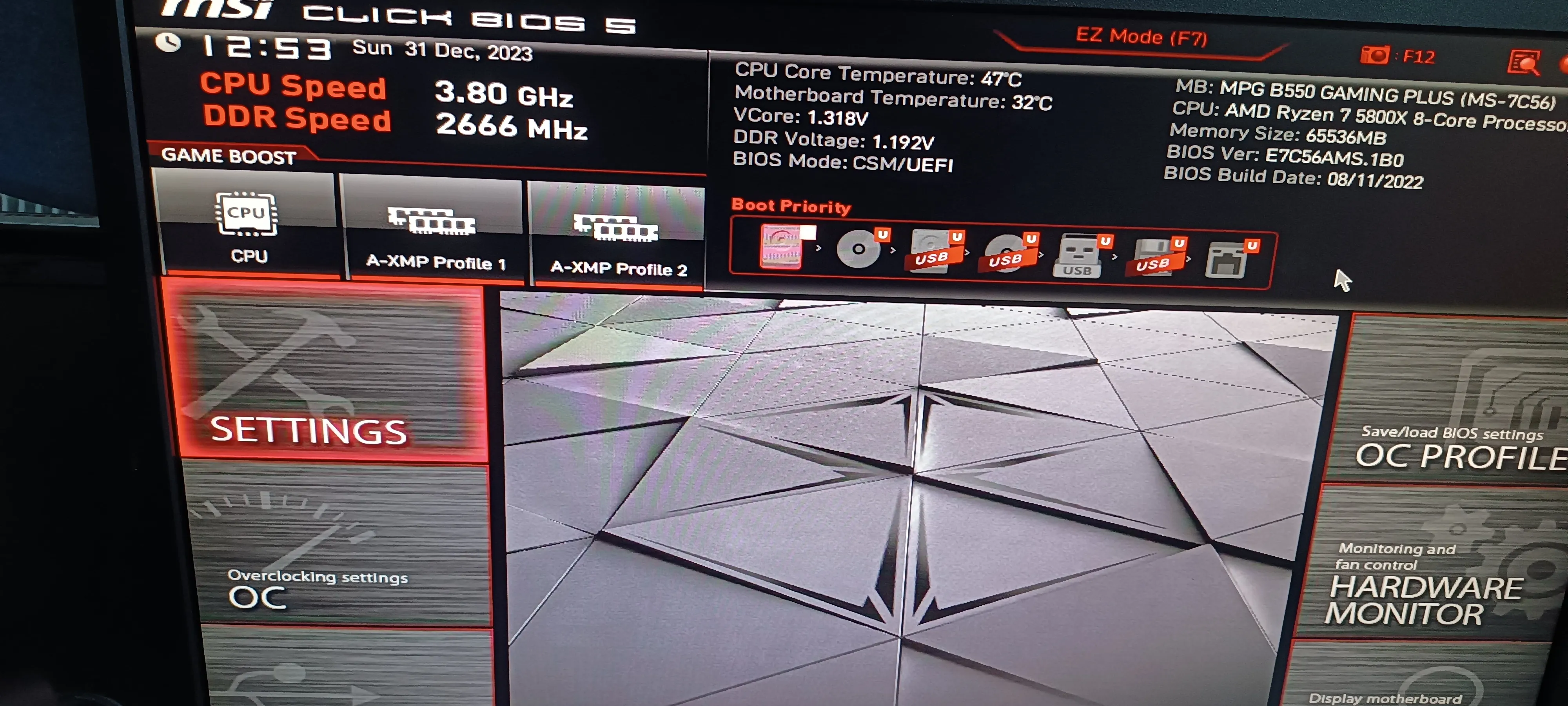
Go into the BIOS with the old graphics card so you can see something. How to enter the BIOS depends on the hardware; for me I have to press the F11 key several times during reboot.
Help video: https://www.youtube.com/watch?v=dNfJczezEn4 -
Enable UEFI by going to settings:
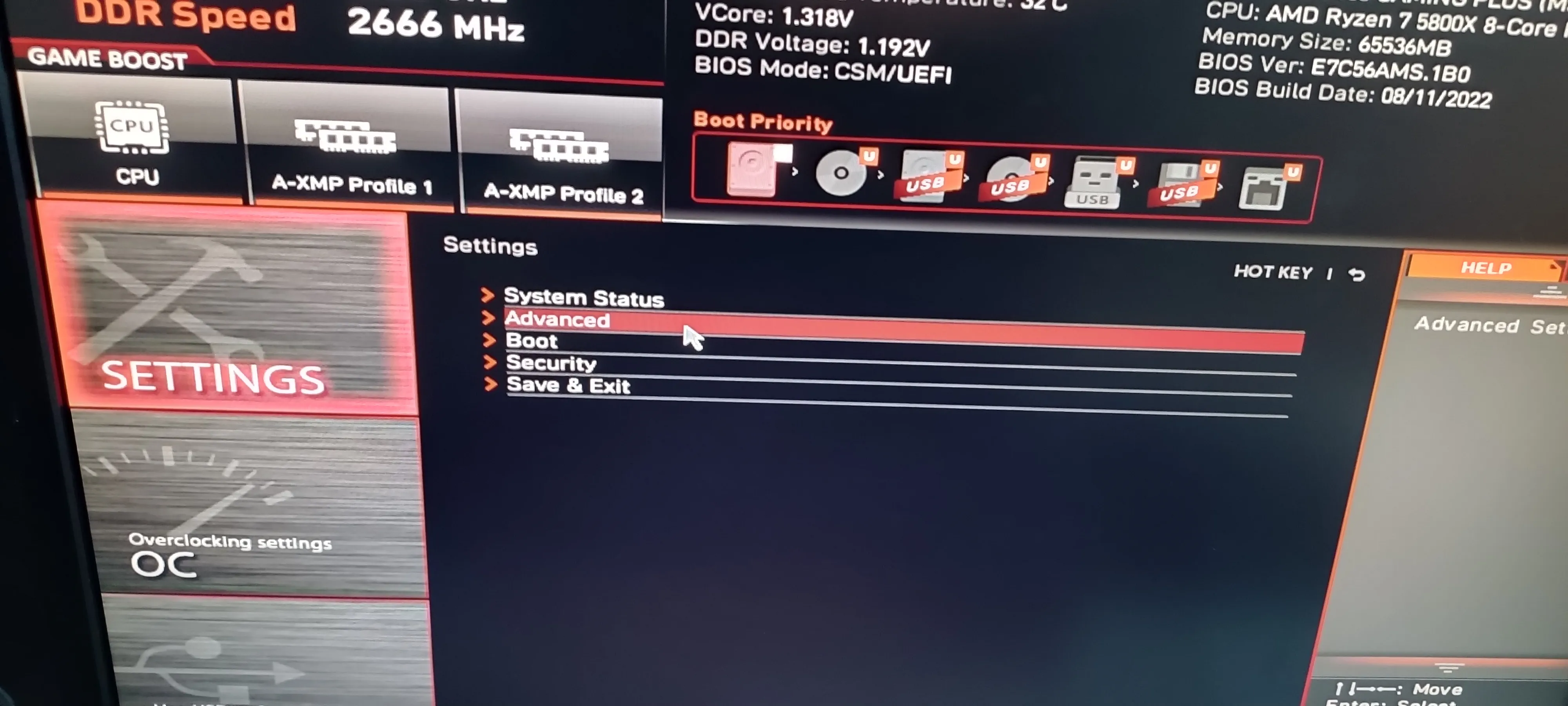
Advanced:
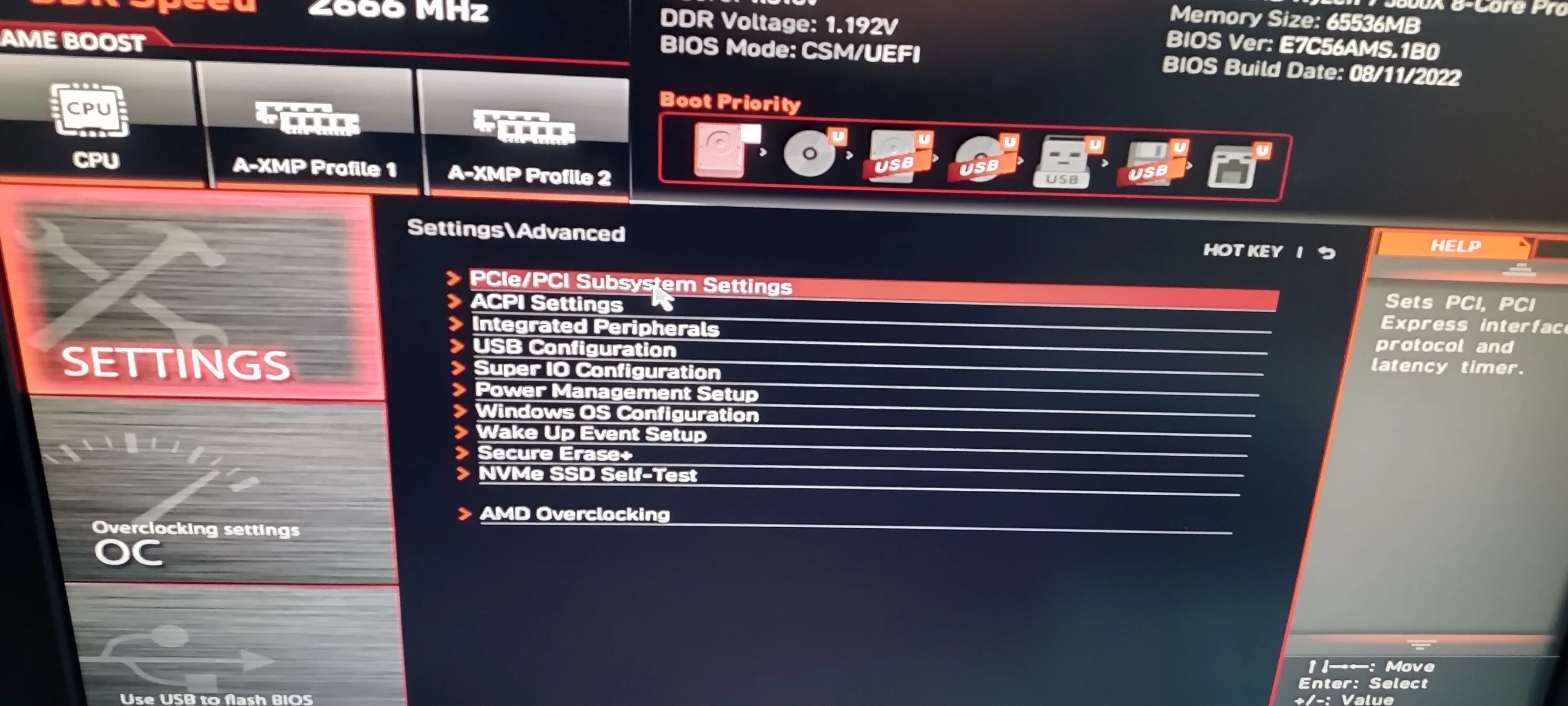
PCIe/PCI Subsystem Settings
Re-Size Bar Support
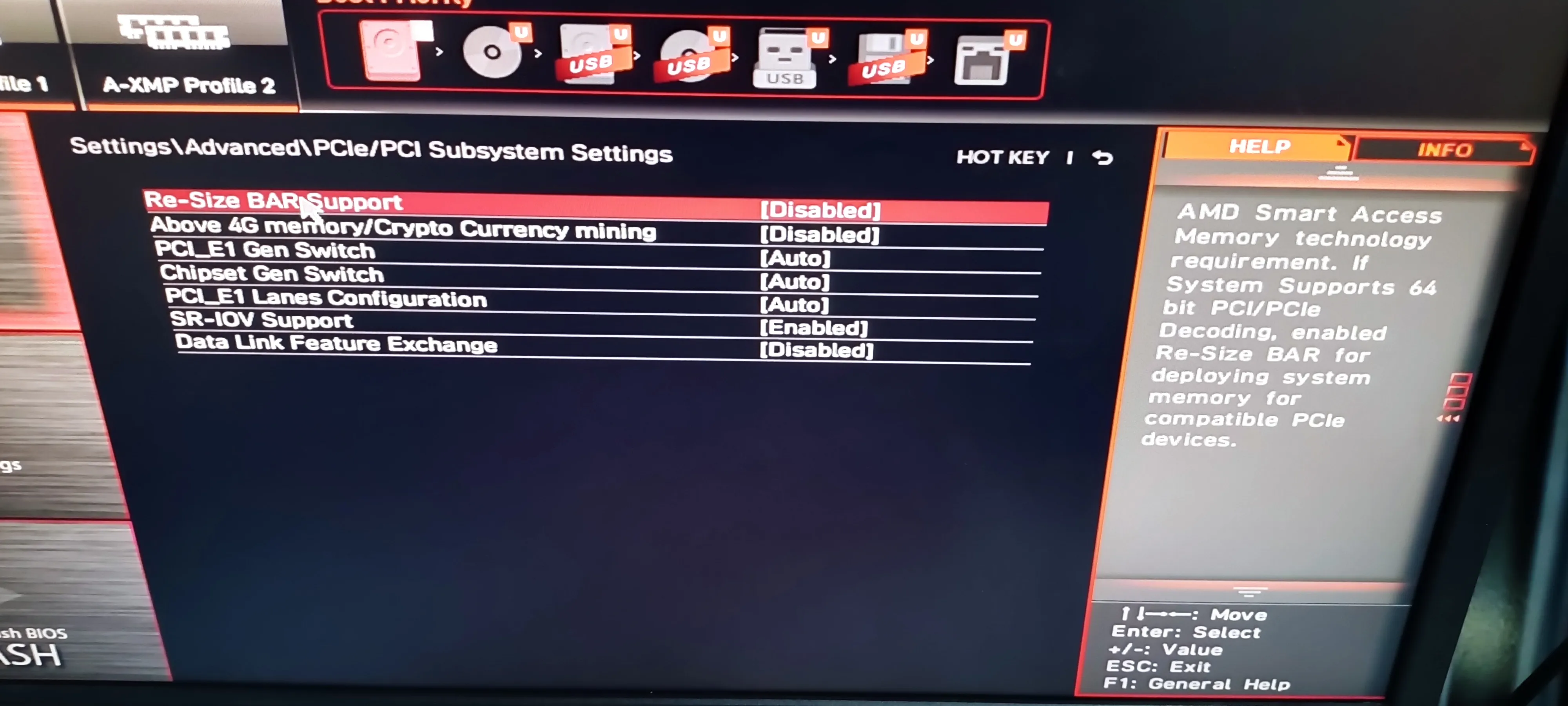
/!\ Note: I don’t really understand the logic of it, but while running tests on my own computer to understand where my friend’s problem came from, I had the same problem. So I was able to fix it twice.
So even if it doesn’t seem logical, that’s what worked for me at least.
If your setting is on Enabled, set it to Disabled then set it back to Enabled.
(this is so that it activates other settings)
If your setting is on Disabled, set it to Enabled.
You can save the changes and exit the BIOS, for me it’s the F10 key.
But make sure to remove the old graphics card right after that, because if the computer boots with it, it will set the parameter back to CSM so it’s pointless.
Now you need to do the clear CMOS. If you don’t know it, it just means removing the battery from the motherboard. It can fix BIOS-related problems, but in our case it’s so that it “forgets” the old configuration.
Help video: https://www.youtube.com/watch?v=wlcSB9-67ec
I unplugged the PC, removed the battery, pressed the power button just to be sure to drain it, and put the battery back.
Now all that’s left is to install the new graphics card, turn on the computer and voilà, problem solved.