
Context
Some time ago, I changed reverse proxy. I switched from SWAG to Traefik.
Problem
With Traefik, I had trouble making Nextcloud accessible. At first, it was because my Nextcloud container was using HTTPS and Traefik wanted to manage the certificates itself.
So I switched Nextcloud to HTTP to work around this problem. If you have other solutions, comments are welcome.
After that, I could log in to NextCloud through my web browser, although I ran into this kind of problem:
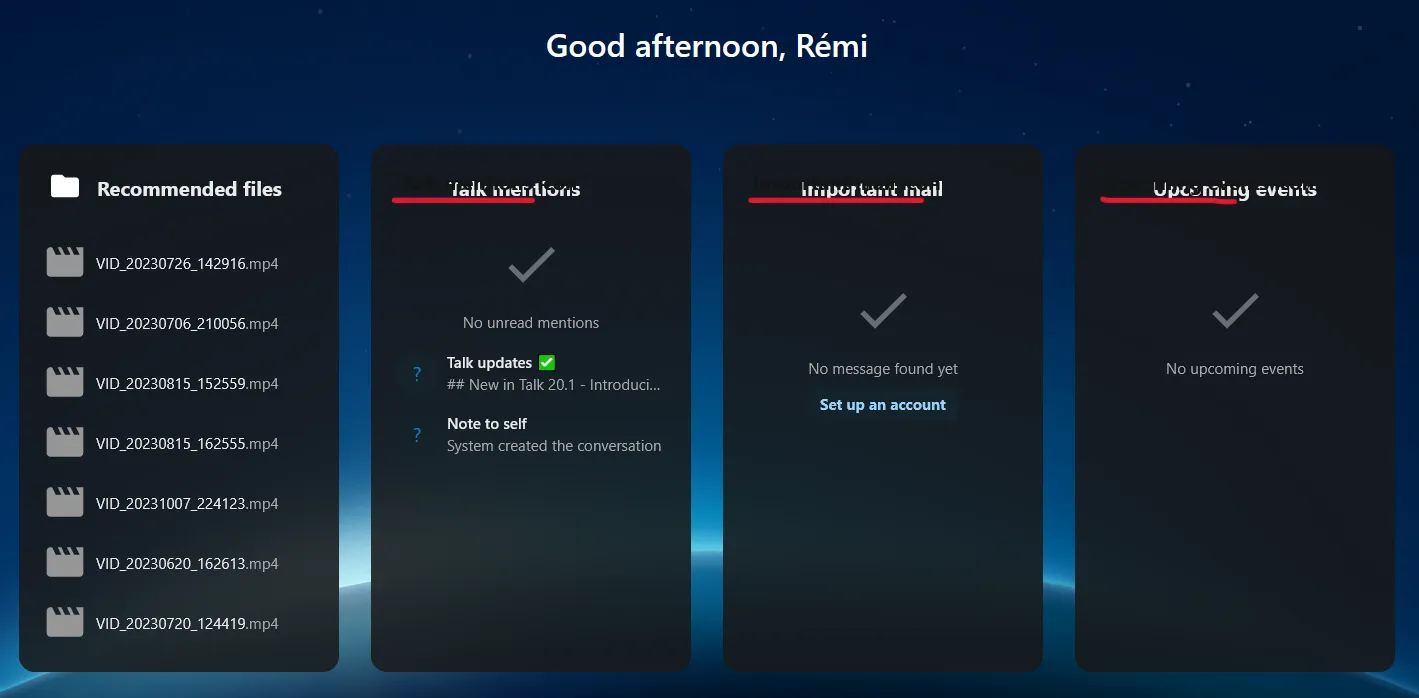
Example of a log I had on the page:
Content-Security-Policy : Les paramètres de la page ont empêché le chargement d’une ressource (img-src) à l’adresse http://nextcloud.mon_domaine.com/apps/mail/img/mail-dark.svg car elle enfreint la directive suivante : « img-src 'self' data: blob: https://*.tile.openstreetmap.org https://192.168.x.x:mon_port »Apart from this display issue, everything works fine. But that’s not the case for the connection from the phone, which kept returning in a loop:
Mode strict : aucune connexion HTTP n'est autoriséeSolution
Mobile app
For the phone problem, I managed to fix it by adding a middleware to my Traefik router, like this for example:
http:
  routers:
    nextcloud:
      rule: "Host(`nextcloud.mon_domaine.com`)"
      service: nextcloud-service
      entryPoints:
        - websecure
      tls:
        certResolver: mon_certResolver
      middlewares:
        - nextcloud-headers

  services:
    nextcloud-service:
      loadBalancer:
        servers:
          - url: "http://nextcloud:80"

  middlewares:
    nextcloud-headers:
      headers:
        customRequestHeaders:
          X-Forwarded-Proto: "https"
By doing this, the middleware tells NextCloud that Traefik is handling HTTPS, so there’s no security problem.
If you don’t do it like me, using Traefik’s dynamic files, but instead use “labels” in the “docker-compose.yml” file, here’s an equivalent:
labels:
      # Active Traefik pour ce conteneur
      - "traefik.enable=true"

      # ROUTEUR : règle d’hôte (domaine)
      - "traefik.http.routers.nextcloud.rule=Host(`nextcloud.mon_domaine.com`)"
      - "traefik.http.routers.nextcloud.entrypoints=websecure"
      - "traefik.http.routers.nextcloud.tls=true"
      - "traefik.http.routers.nextcloud.tls.certresolver=mon_certResolver"

      # MIDDLEWARE : envoie l’en-tête X-Forwarded-Proto
      - "traefik.http.middlewares.nextcloud-headers.headers.customrequestheaders.X-Forwarded-Proto=https"

      # Attache le middleware au routeur nextcloud
      - "traefik.http.routers.nextcloud.middlewares=nextcloud-headers"
NextCloud display
For the display on the NextCloud side in the browser, you just need to go to NextCloud’s configuration file, in “www/nextcloud/config/config.php” for example.
Then, just add these two lines inside the “$CONFIG = array ()” array:
'overwritehost' => 'nextcloud.mon_domaine.com',
'overwriteprotocol' => 'https',
Thanks to this, NextCloud will fetch the files it needs based on your domain and the protocol you use (https).
In my case, without this, it tries to fetch the files from “https://192.168.x.x:mon\_port” whereas, as I explained at the beginning, my local Nextcloud uses http, not https, so it’s normal that it can’t find them.
Moreover, if the application needs to be accessible from outside, it makes no sense to rely on an IP like “192.168.x.x”, which is a local IP.
Hence the need to use our domain name.