Background

I bought several ESP32s on AliExpress along with other electronic components.
I wanted to test these chips, which cost me about €4 each.
Problem
The Arduino IDE doesn’t support ESP32s by default. You can always go through PlatformIO via Visual Studio Code, for example, but for simplicity’s sake I still preferred the Arduino IDE.
Also, not all ESP32s are the same, so you need to pay attention to compatibility.
Solution
To begin with, you need to add the extension that lets you use ESP32s in the Arduino IDE.
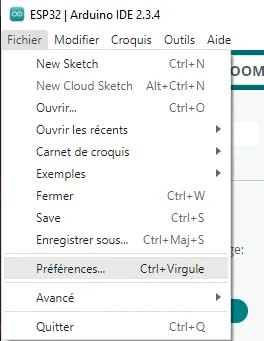
Go to “File > Preferences”:
Click the button shown in the following image:
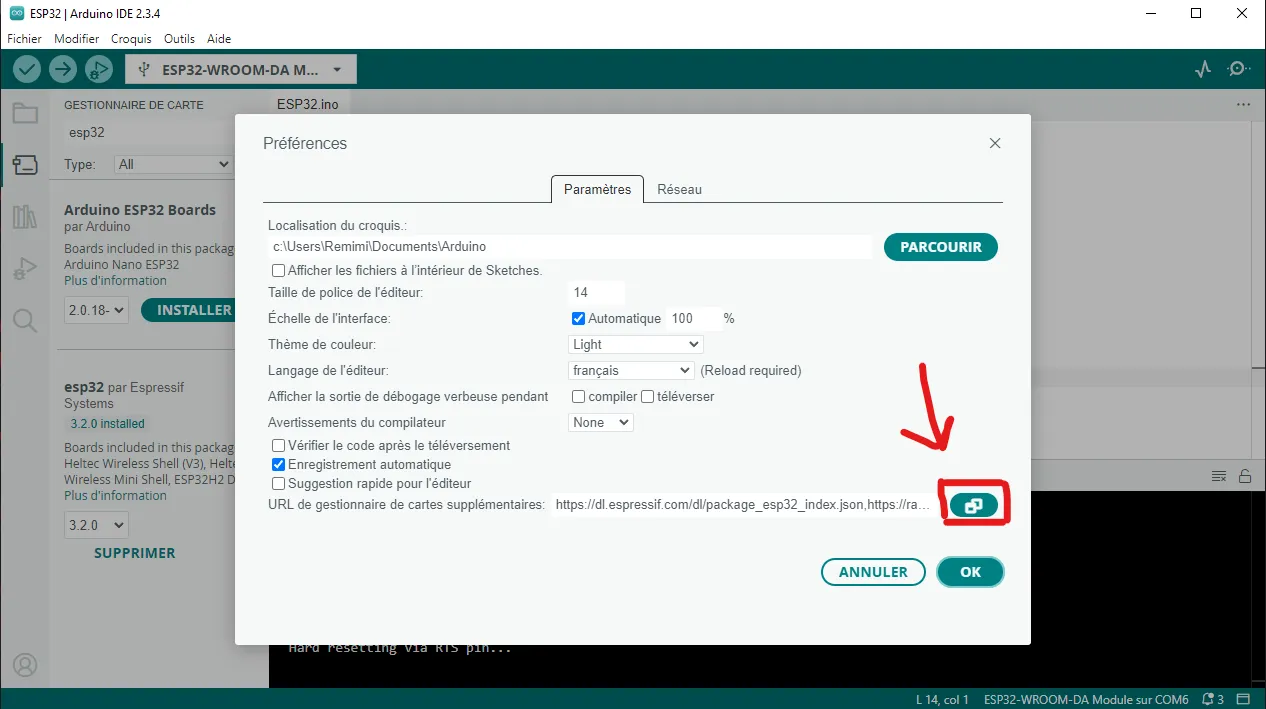
All that’s left is to add the extensions you want.
Here, you simply need to add this line:
https://raw.githubusercontent.com/dbuezas/lgt8fx/master/package_lgt8fx_index.json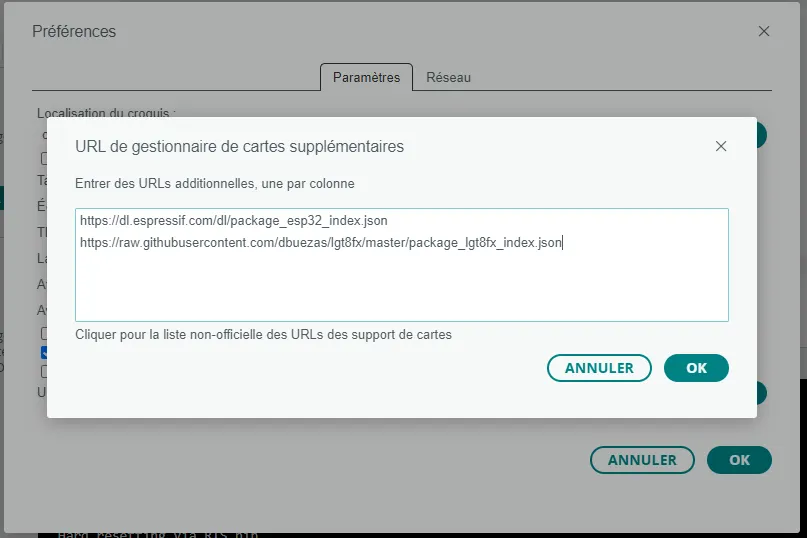
Press “OK”, and it’s registered.
Now that the extension is added, you need to install it:
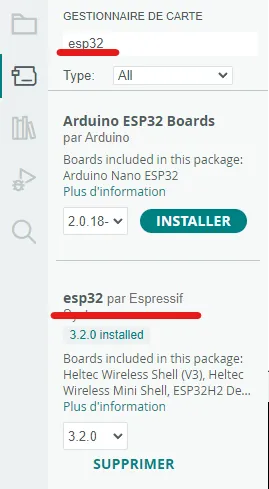
Why are there two options? Remember that there are several ESP32 models, from different brands. Espressif is one of those brands. In my case, the ESP32 WROOM belongs to Espressif.
Once it’s installed, you need to tell the Arduino IDE that you want to work with an ESP32.
So click here:
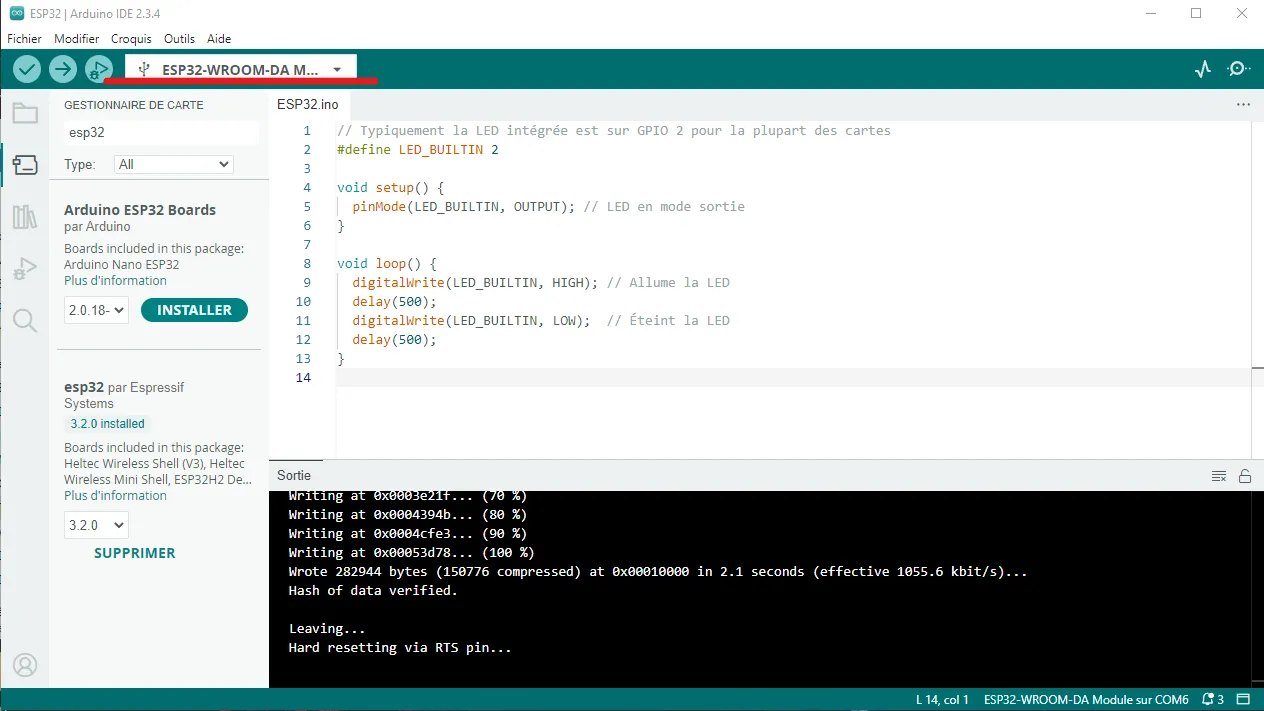
Then, select the right model for your ESP32:
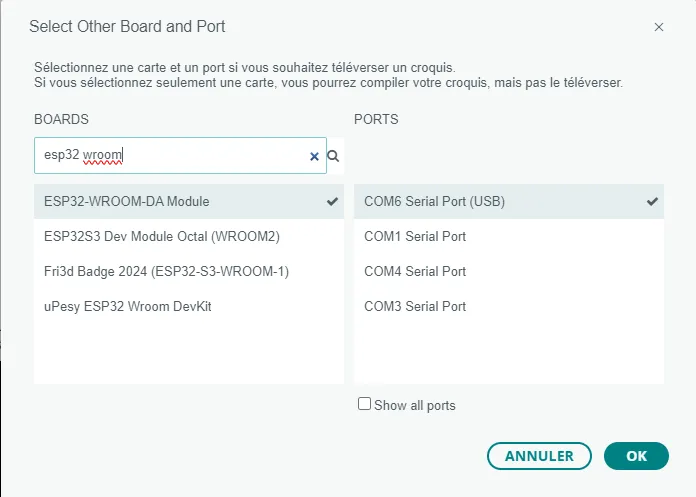
Remember that the COM port is the port where you plug the ESP32 into your computer, so it may be different from mine.
Conclusion
Want to test your code? If you have the same ESP32 as mine, you can do this:
// Typically the built-in LED is on GPIO 2 for most boards
#define LED_BUILTIN 2

void setup() {
  pinMode(LED_BUILTIN, OUTPUT); // LED as output
}

void loop() {
  digitalWrite(LED_BUILTIN, HIGH); // Turn the LED on
  delay(500);
  digitalWrite(LED_BUILTIN, LOW);  // Turn the LED off
  delay(500);
}
When you upload the code to the board, you should see a blue light blinking!