You have a NAS and you want to share your data between the different devices in your home but don’t know how?
By “different devices” I mean computers (Windows, Apple, Linux) and TVs.
You’ve come to the right place.
You can also connect your phones. Personally I do it through a web interface, but that’s for another tutorial.
Computer protocols
In computing, protocols are a set of rules governing data exchanges or the collective behavior of processes or computers on a network, or of connected objects.
Thanks Wikipedia 😘👌
To put it more clearly, a protocol is what links different devices together.
For example, a protocol you probably use every day: the https protocol, or even http.

It’s the protocol used for browsing the web.
And now you’re probably thinking “OK, and what does that have to do with anything? 👀”.
Well, to link the different devices in your home, and even outside your home, we’re going to use protocols.
Most NAS devices enable the 3 protocols I talk about below by default.
So if you’re here, you probably want to set up a NAS you built yourself.
For this little tutorial, I’m using OpenMediaVault.
Connecting a NAS to Windows devices with the SMB protocol
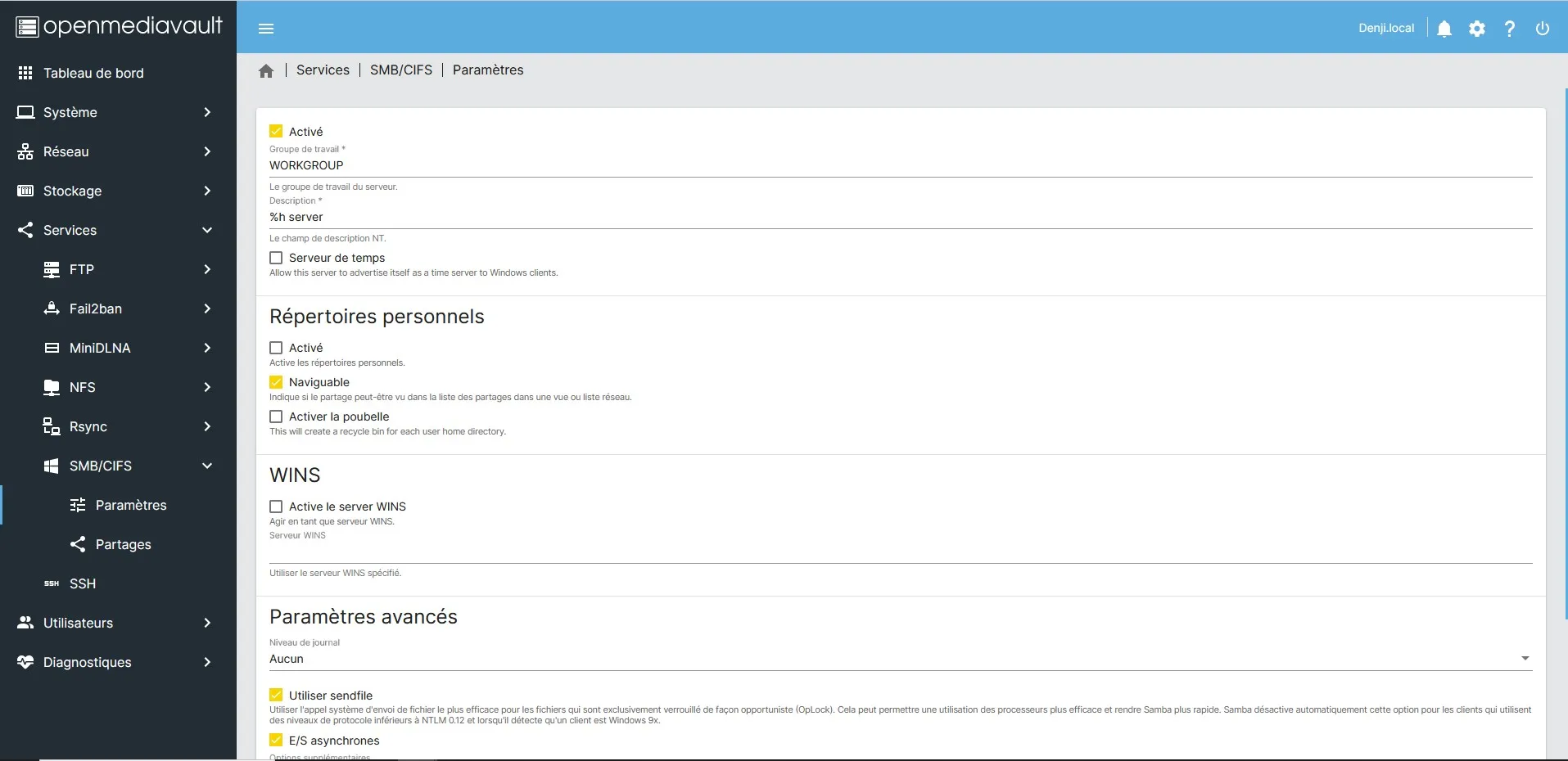
For your Windows computer, for example, to access your NAS, you need to enable the SMB protocol on your NAS.
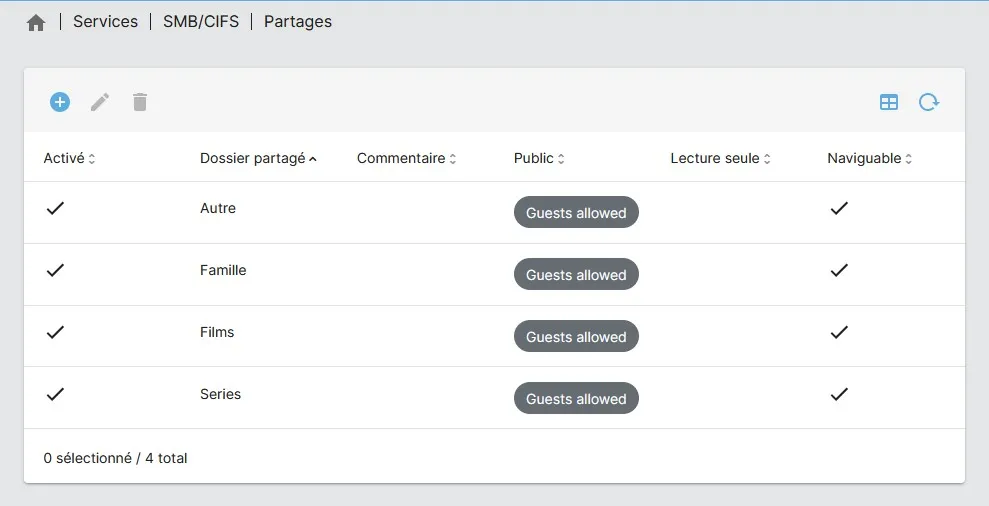
Now you need to tell it which NAS folders we want to share with the rest of the devices.
Connecting a NAS to Apple / Linux devices with the NFS protocol
Yes, it’s the same protocol for Apple and Linux since Apple is based on Linux…
Anyway, for your Linux devices to access your NAS, you need to enable the NFS protocol on your NAS.
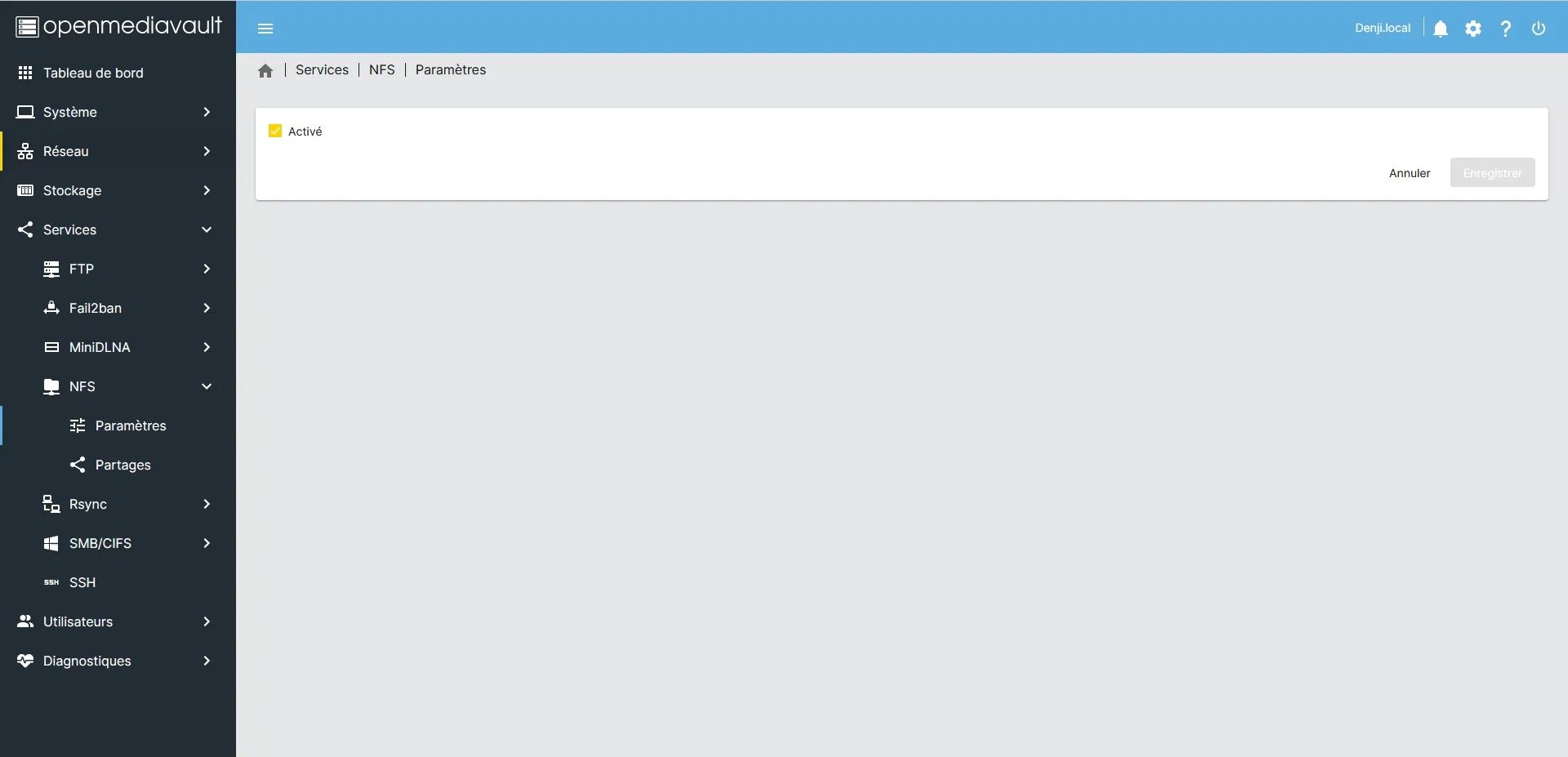
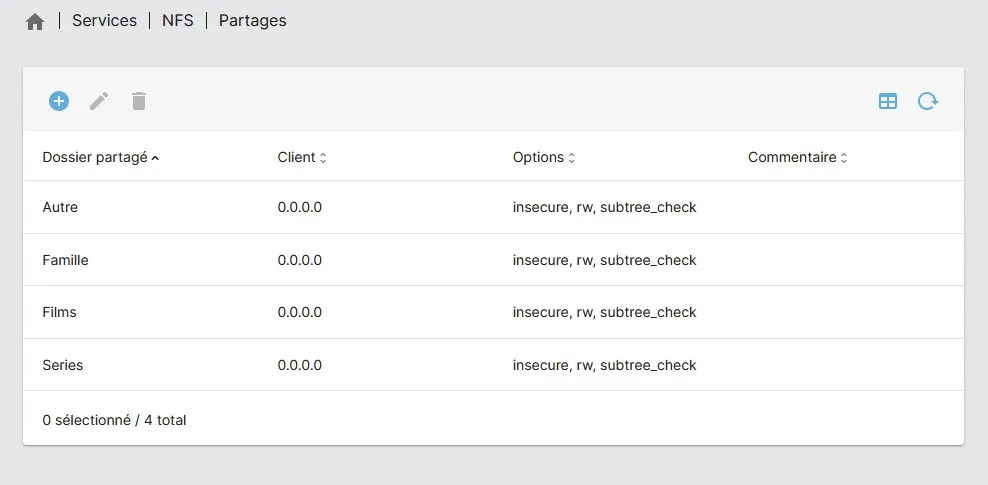
Yes, to enable folder sharing over NFS, you need to provide a value for the “Client”.
You can see that I put the value “0.0.0.0”.
Without going into too much detail, it means it accepts any device.
I’ll explain in 2 seconds; if you’re not interested, skip to the next part 😉
For devices to talk to each other, they have names, called IP addresses.
For example, “192.168.0.40” is an IP address and it can be the name of a device (computer or otherwise).
Here, “0.0.0.0” is not a name; the value 0 in an IP address means any value can be used (between 1 and 254, so, since 255 has another function, broadcast, but we don’t care about that here).
So if your computer’s IP is “192.168.0.40”, for example, and you put its IP in place of the NFS “Client”, the share will only work with your computer.
That’s usually not the goal, but now you know it’s possible 😉
Connecting a NAS to TVs with the DLNA protocol
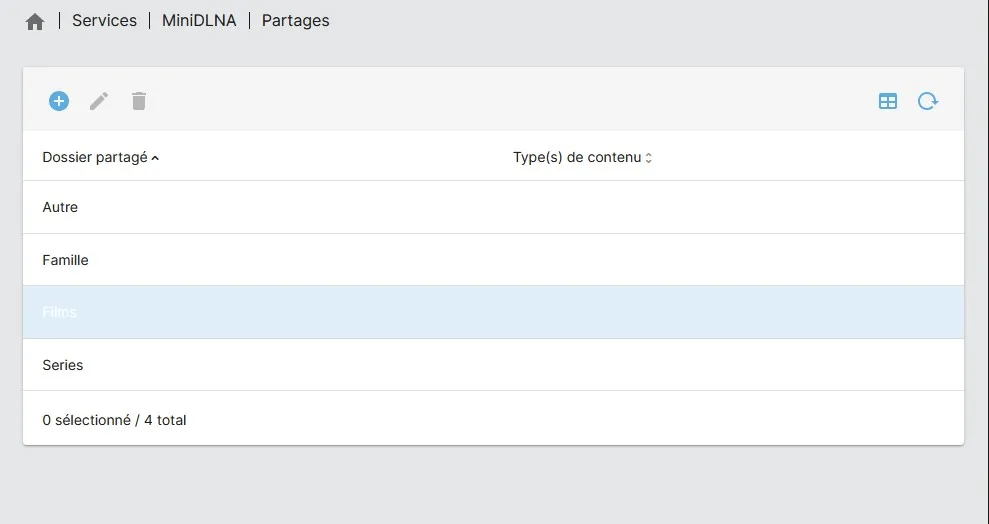
For your TV to access your NAS, you need to enable DLNA.
Note that only TVs that can be connected to the internet can do this.
DLNA isn’t included in OpenMediaVault by default, so you have to download it yourself.
We’ll keep it simple.
1) Download OMV-Extras.
You can see a quick installation tutorial here: Install OMV-Extras on OpenMediaVault
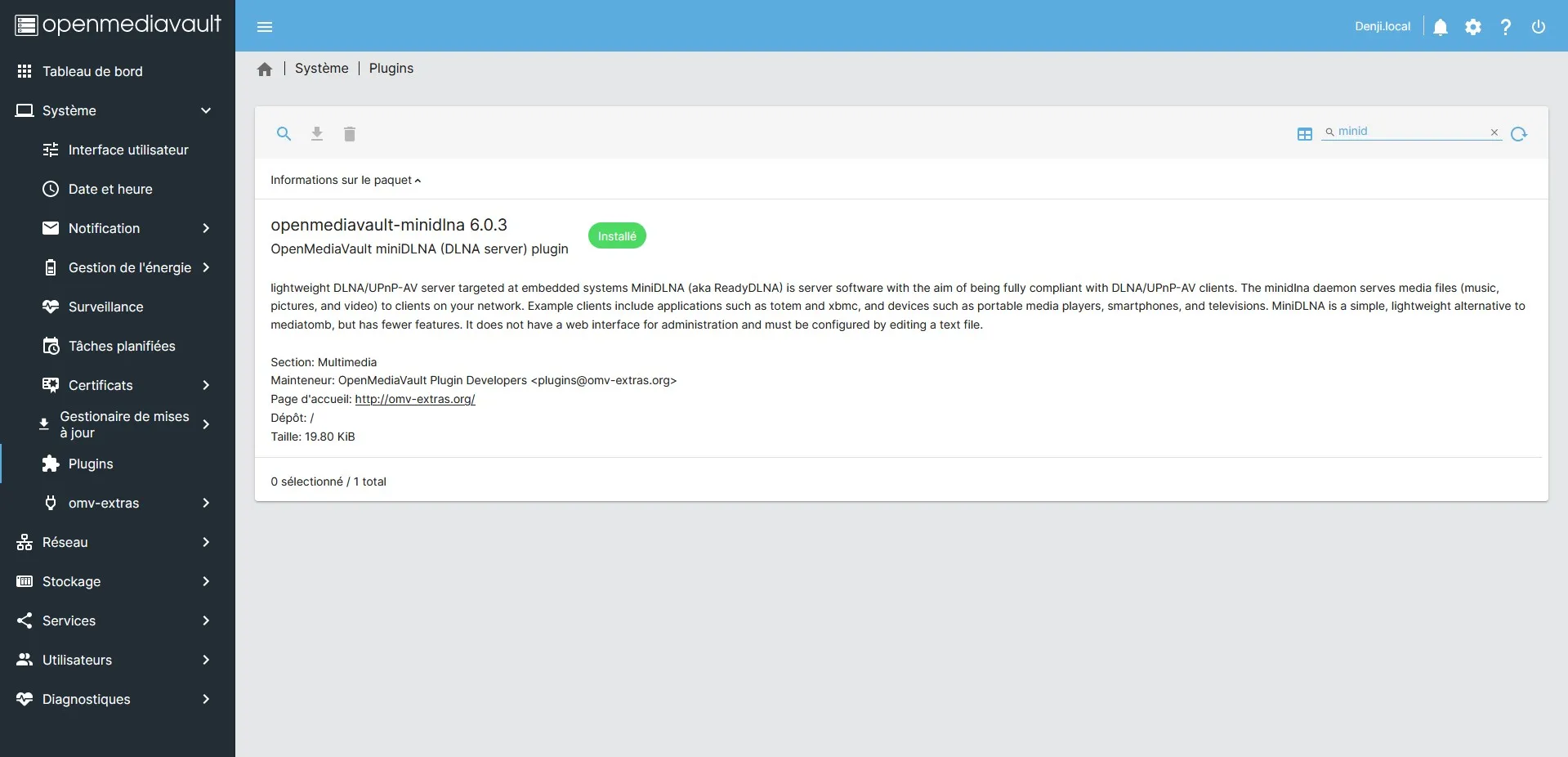
2) Download MiniDLNA.
It’s the plugin that gives us DLNA.
Go to: System > Plugins
Then search for “MiniDLNA”.
Download it.
3) Enable DLNA.
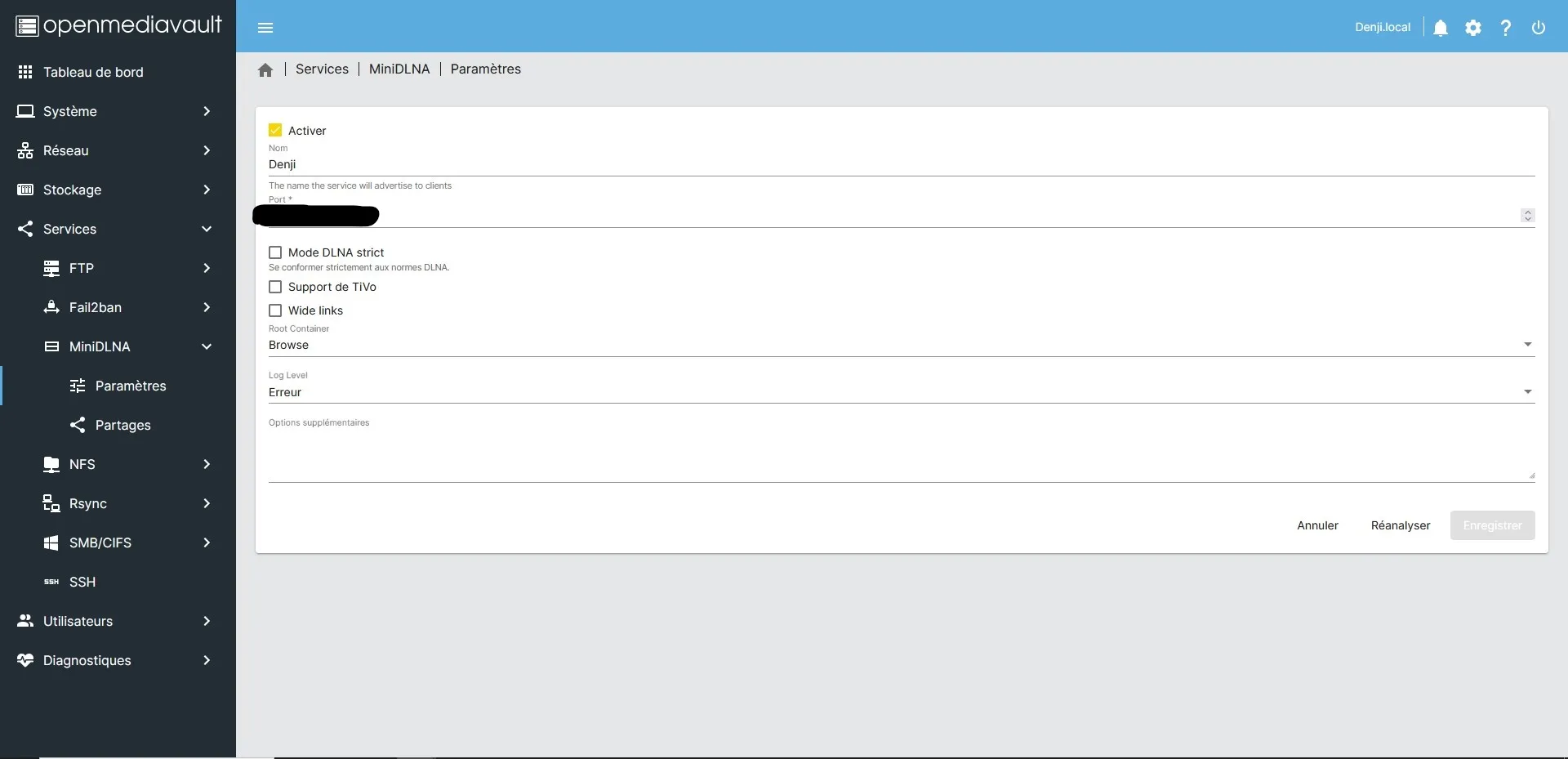
Of course, don’t forget to enable folder sharing, otherwise it’s pointless. 😉